

 App guide
A little guide to less family admin
Start with one topic below. Each one walks through the real app, step by step.
Tell Lare
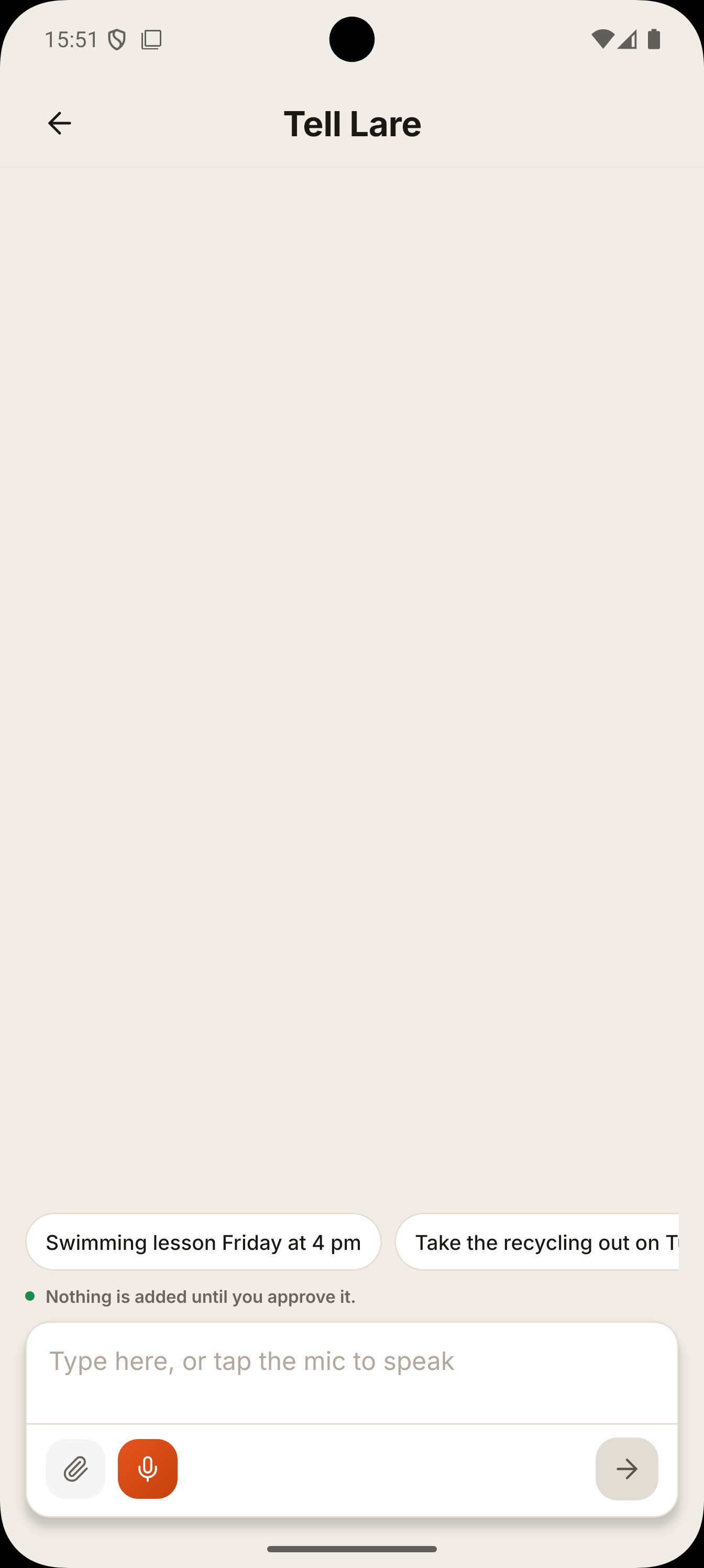
Send Lare a message the way that suits you, and it turns it into an event, a task or a list item that you check first.
Send Lare a message
Type it, speak it, attach a photo or a PDF, or paste the text of a school email. It becomes a checkable suggestion, not a typing chore.
Send a Romanian or Dutch message while the app is set to English, and Lare prepares the event, the task and its reply in English.
Lare asks when something is unclear
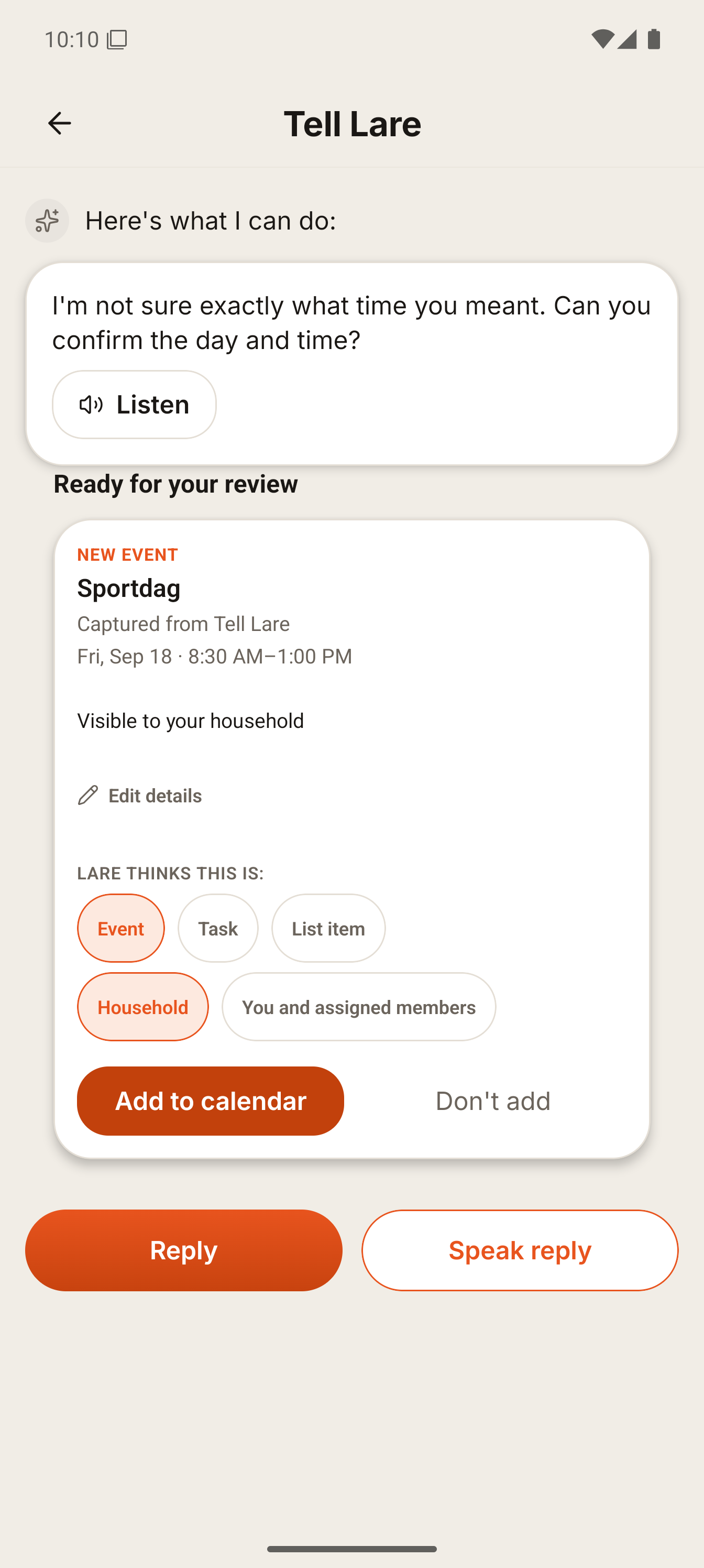
If a detail is missing or uncertain, Lare asks before proposing. Here it asks to confirm the time and shows the proposed sports day from 8:30 to 13:00.
Check, edit, approve
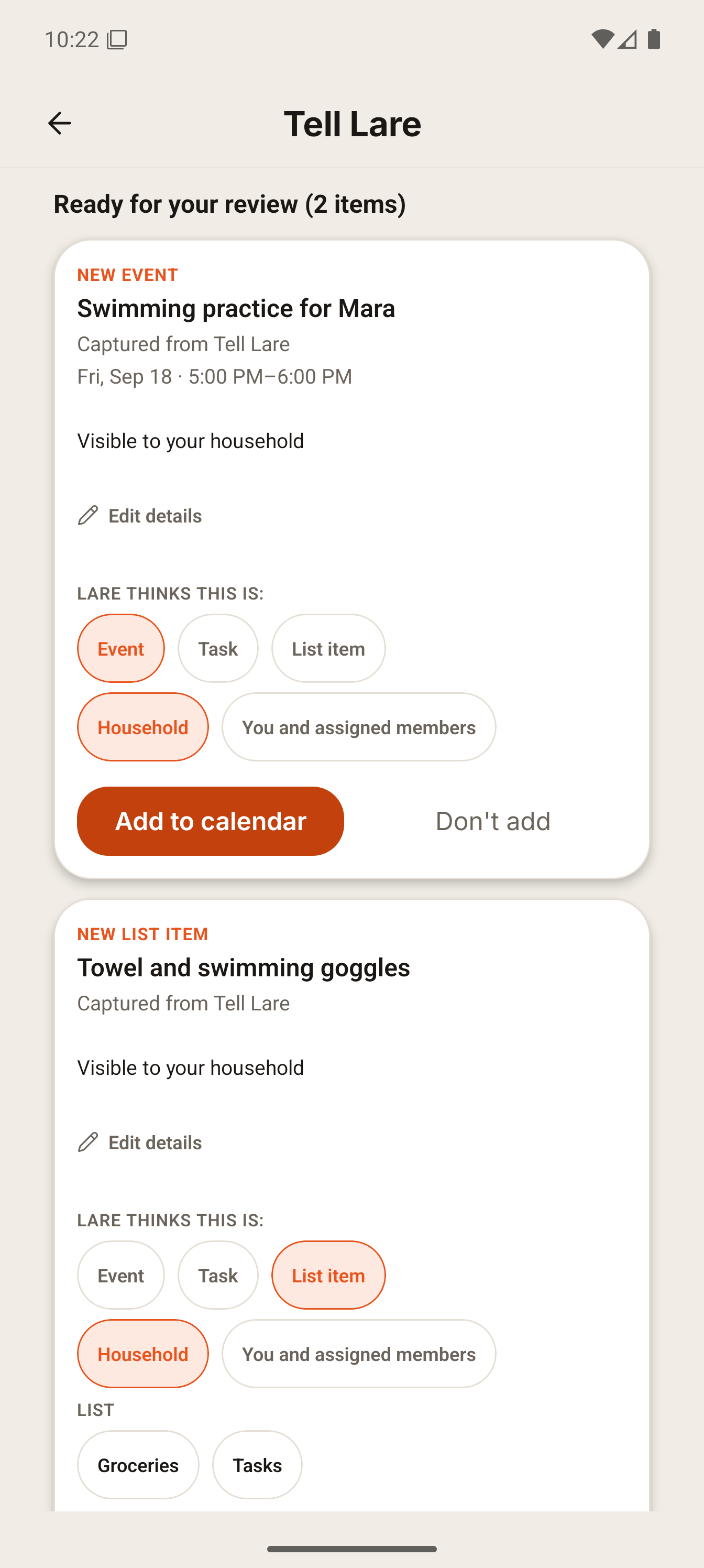
Every proposal names its source and what Lare thinks it is. Change a time, choose who sees it, skip what you do not need, approve what you do.
Nothing Lare proposes is added until you approve it.
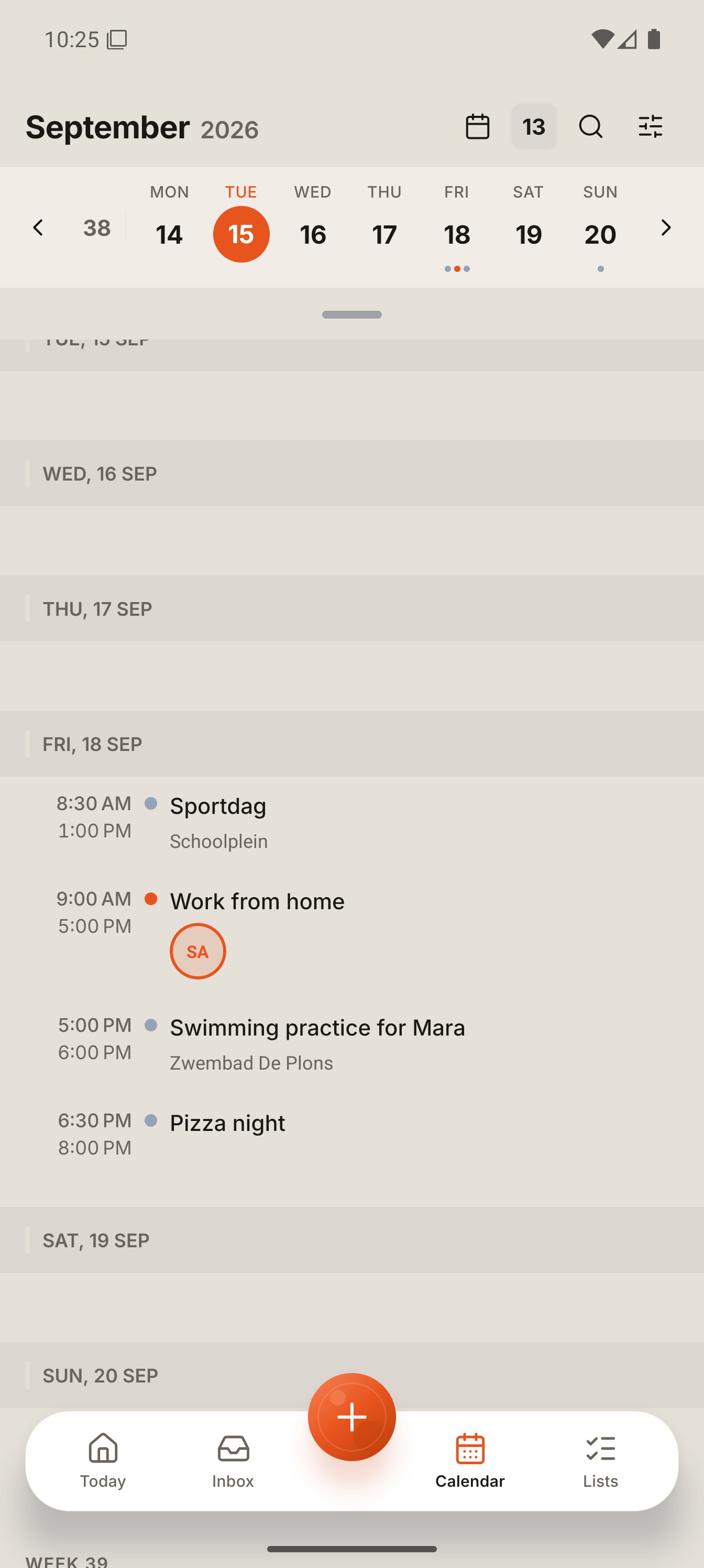
In the plan
Only what you approved lands in the family calendar, tasks and lists. Today and the agenda now show the sports day.
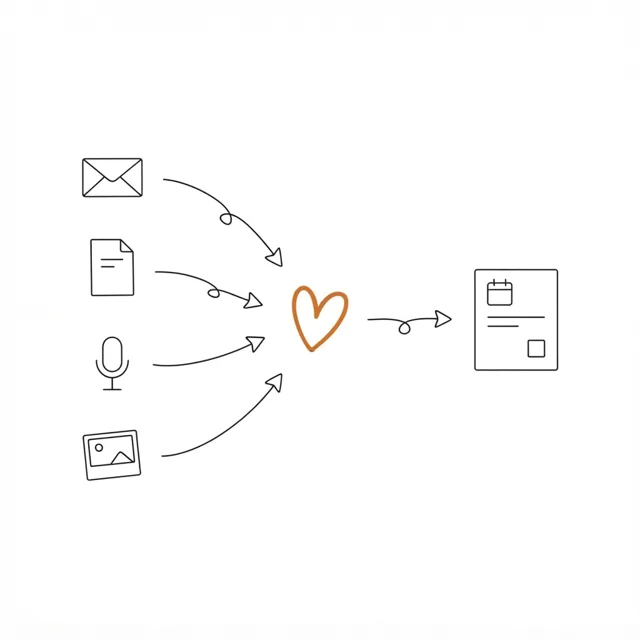
Forward school email to your family address, or let Lare read only the Outlook senders you allow. You review everything before it lands in the plan.
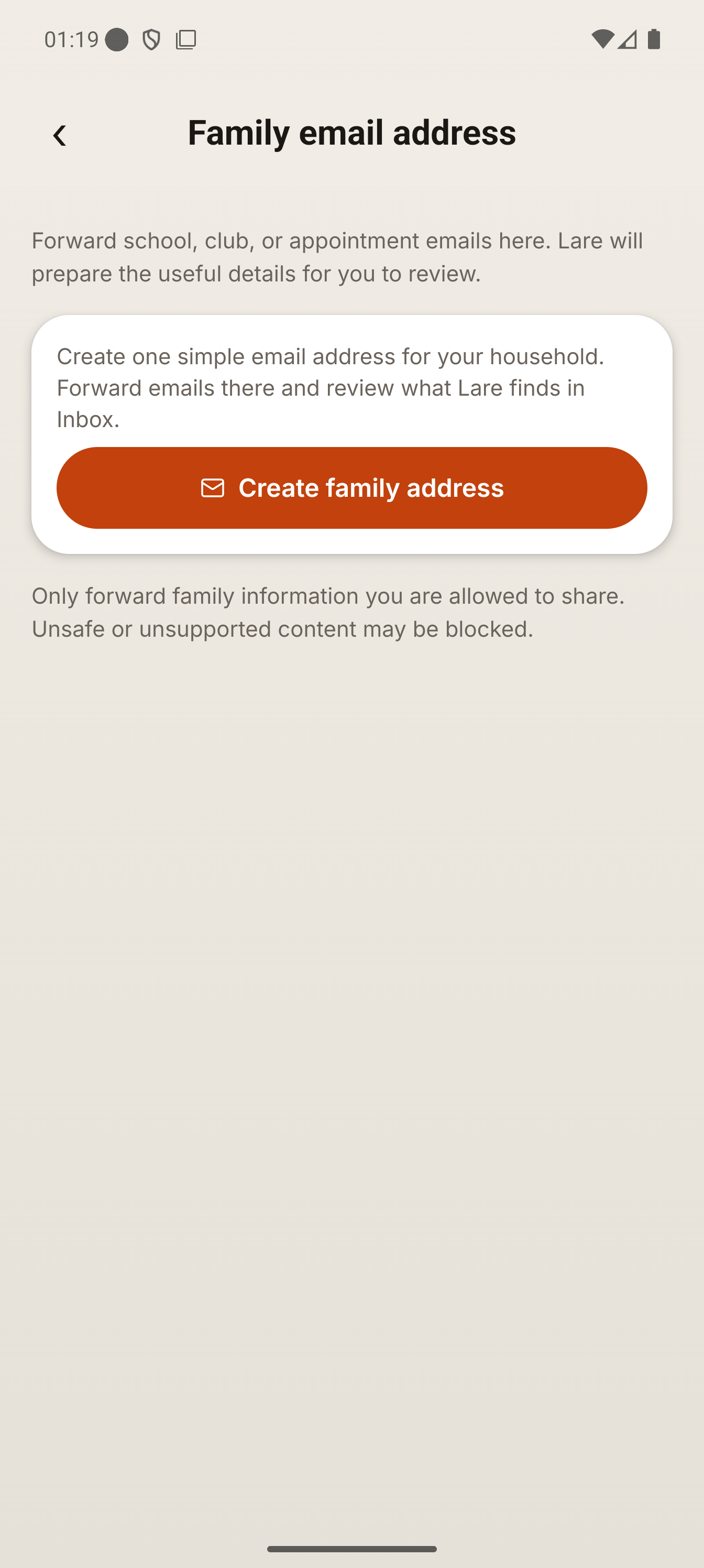
Find your family address
Your household has its own family address, created in Settings. Copy it into your mail app, or keep it handy to forward messages to.
Lare reads forwarded email on Free too, within your Lare allowance. Email forwarded after the allowance runs out is not read or kept, so forward it again later. This does not apply to a connected Outlook Mail inbox, which pauses and resumes with your plan instead of losing anything.

Forward the emails you choose
Forward from any mail app, including Gmail, Apple Mail and Outlook. Larevio never sees the rest of your inbox and never needs your password.
Illustration, not an app screen: forwarding happens in your own mail app, such as Gmail, Apple Mail or Outlook.
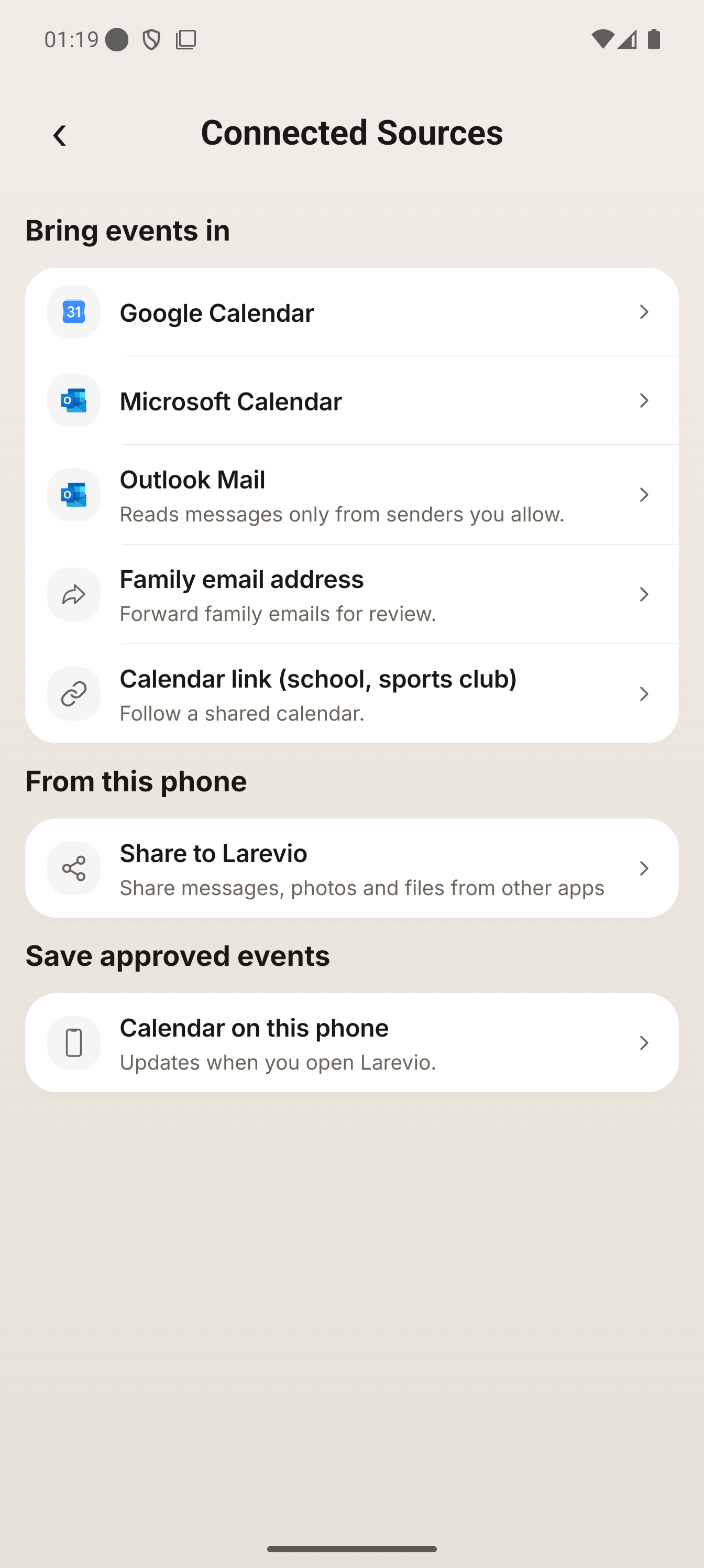
Or allow senders in Outlook
If Outlook Mail appears in Settings, connect it and pick the senders Lare may read, one by one. Gmail, Apple Mail and other inboxes forward to your family address instead.
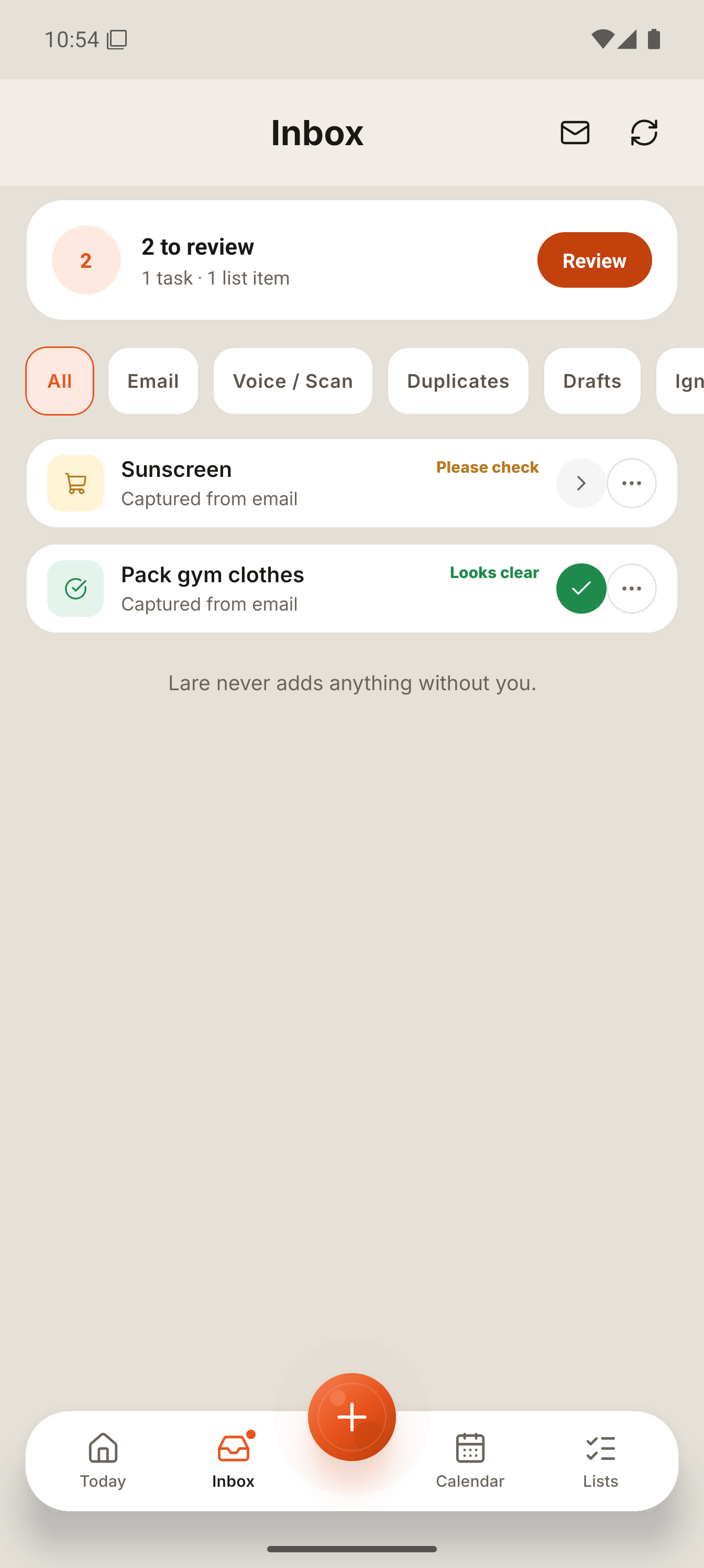
Review in the Inbox
Items that arrived by email wait in the Inbox, each marked for review, with the sender and the subject they came from.
The sender, subject and excerpt are cleared on our next nightly cleanup once you decide, not the instant you tap, and attachments are removed after 7 days regardless. A forwarded email also shows in Family Mail, where your household can read its summary and up to 1,000 characters of the text until nothing from it is waiting for you, for 30 days at most.
Approve, and it is in the plan
Only what you approved lands in the family calendar, tasks and lists.
Calendar
One shared calendar for the household: every child in their own colour, the calendars you already use brought in, and a say in where approved events get saved.
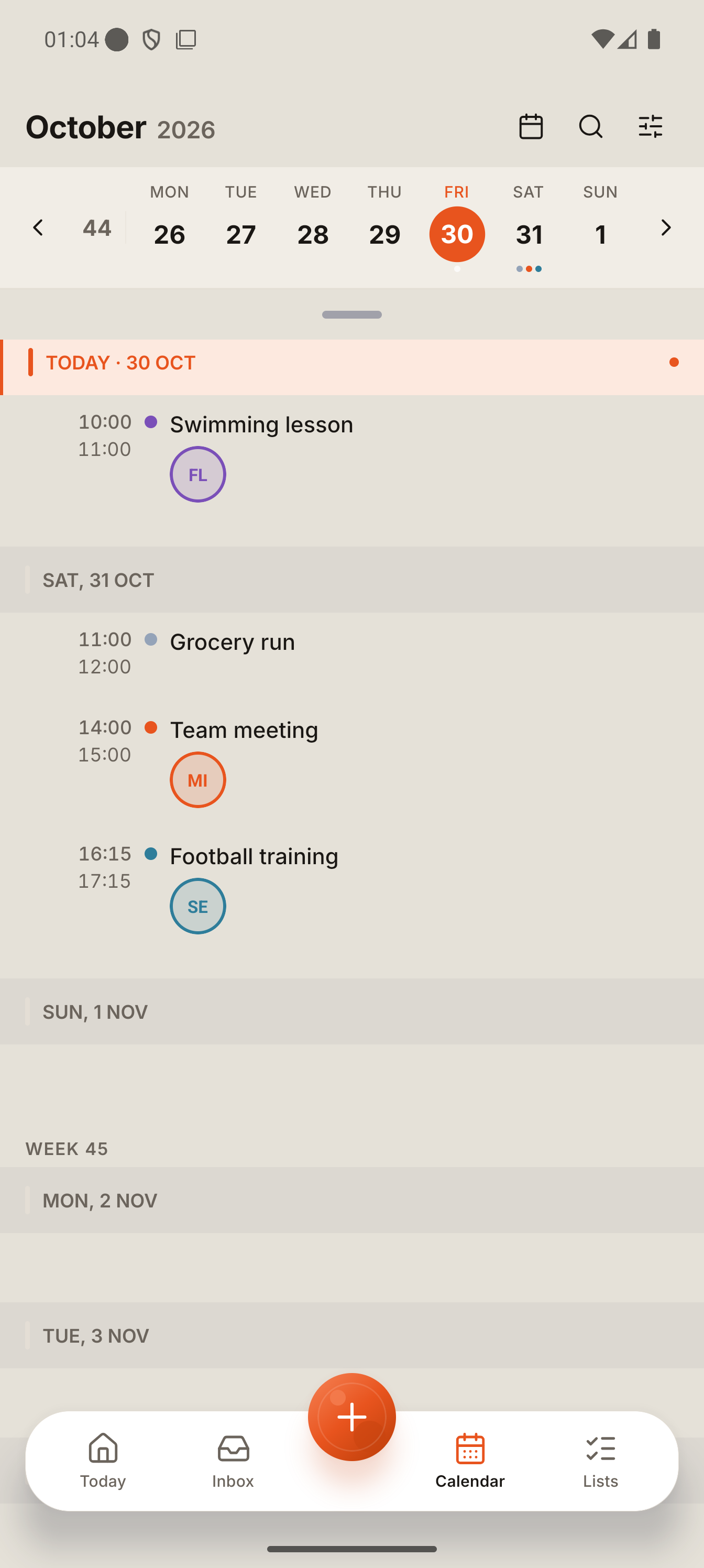
Every child in their own colour
Switch to the week view and each household member keeps their own colour, so a shared week stays easy to read at a glance.
Choose who can see an item when you review it. A family plan does not mean everything has to be shared.
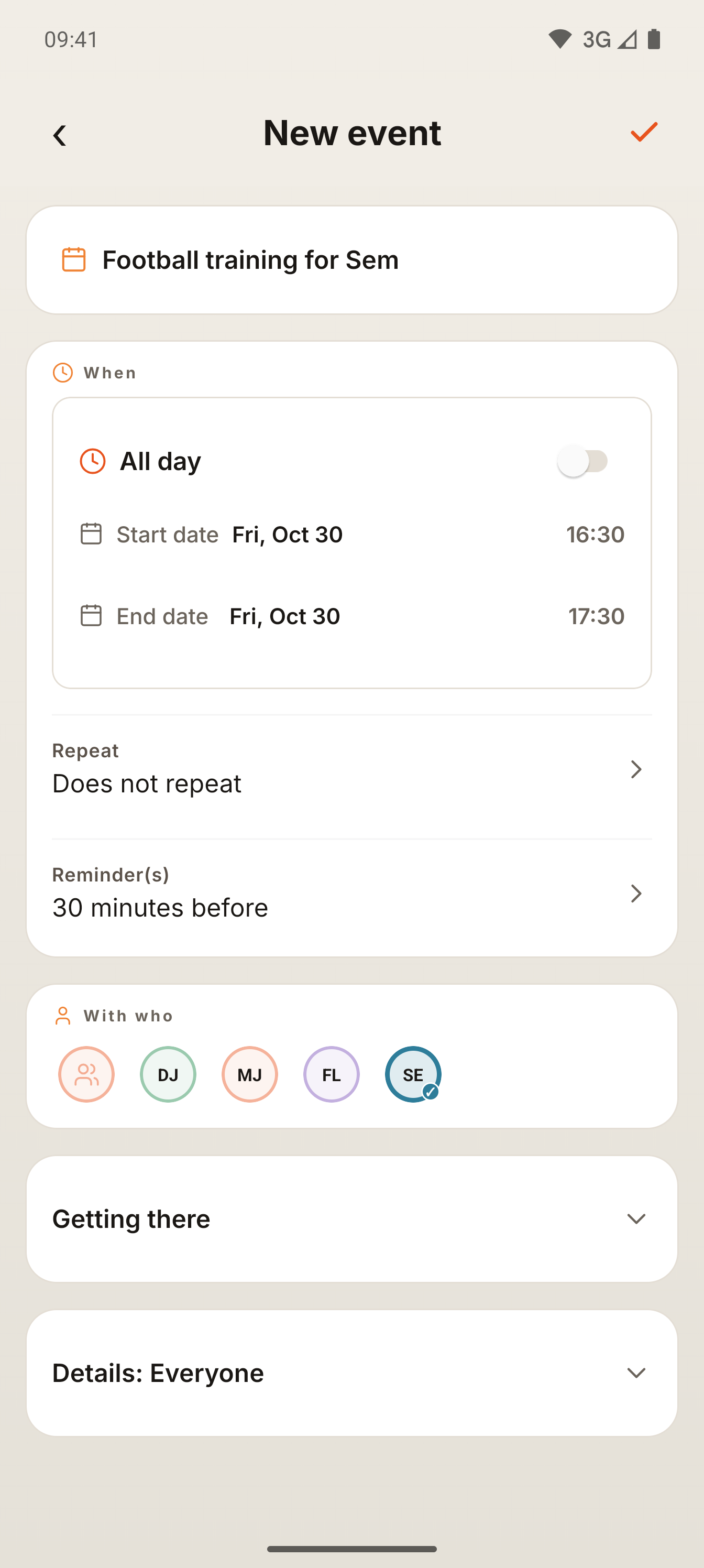
Add an event yourself
Tap the plus, choose Event, fill in what it is, when and who it is for, then tap the check to save it to the calendar. No Lare needed.
Captured 30 October 2026 in a test environment with a test household. English app.
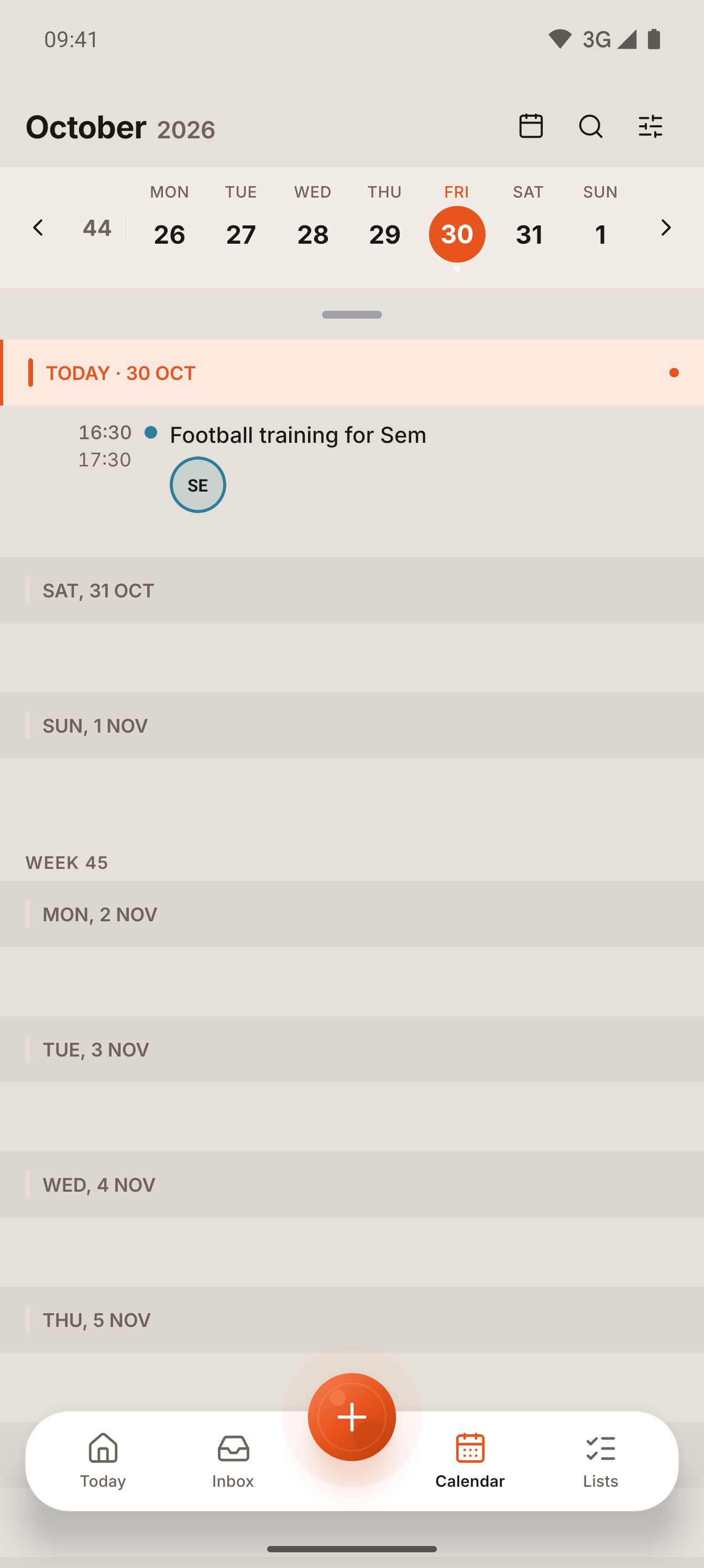
It is in the agenda
The event shows in the agenda straight away, with the person it is for.
Captured 30 October 2026 in a test environment with a test household. English app.
Connect Google or Microsoft, and save events back
Connect a Google or Microsoft calendar to bring its events in automatically, and choose whether your approved Larevio events get saved back to it. The account, what it brings in and where approved events are saved all live on one settings screen.
For Microsoft, saving back works with a personal account, not a work or school one.
Apple Calendar and other read-only links
Use a read-only calendar link to see your Larevio plan in Apple Calendar and other calendar apps, or follow a school or sports club calendar the other way, from the same Connected Sources screen.
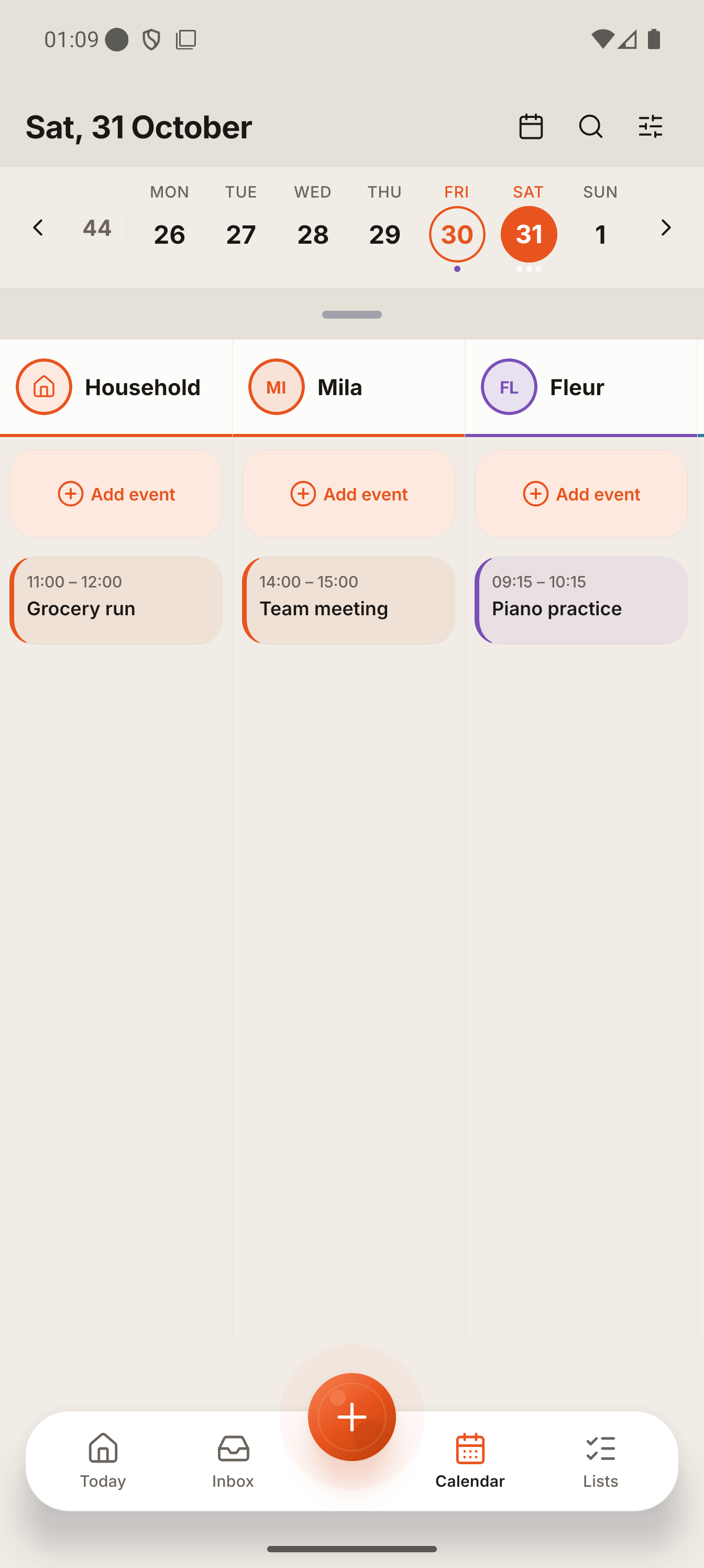
Filter to one person's day
Switch to Family view and tap a name to see just that person: their own events, their own colour, and an Add event that already knows who it is for.
Add family member sits at the end of the row, so bringing in a new child or co-parent takes one tap.
Lists
Shopping and to-do, kept separate, shared with the whole household.
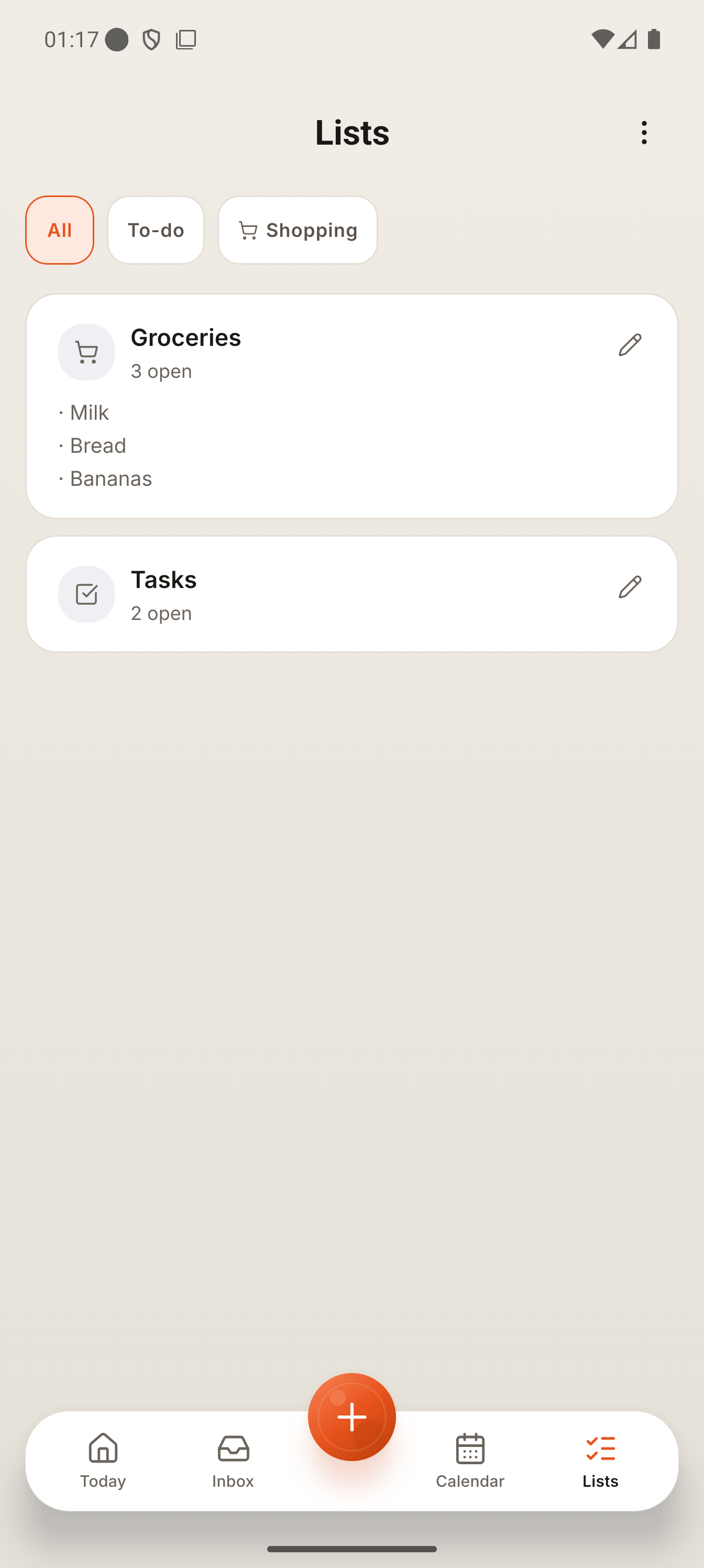
Your lists, ready from the start
Two lists are ready from the start: Groceries for shopping, Tasks for everything else. Add more whenever you need them.
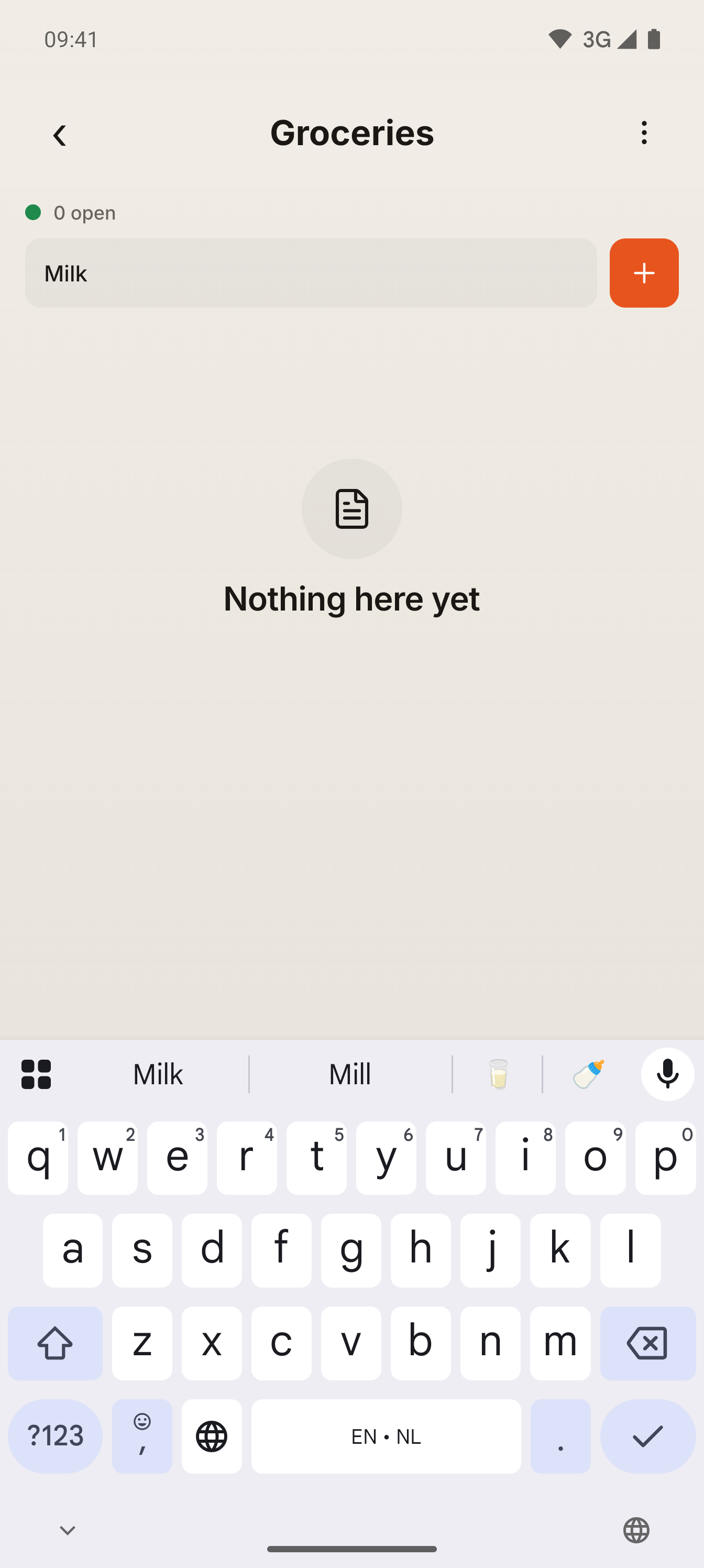
Add an item
Open a list, type the item and tap the orange plus.
Captured 30 October 2026 in a test environment with a test household. English app.
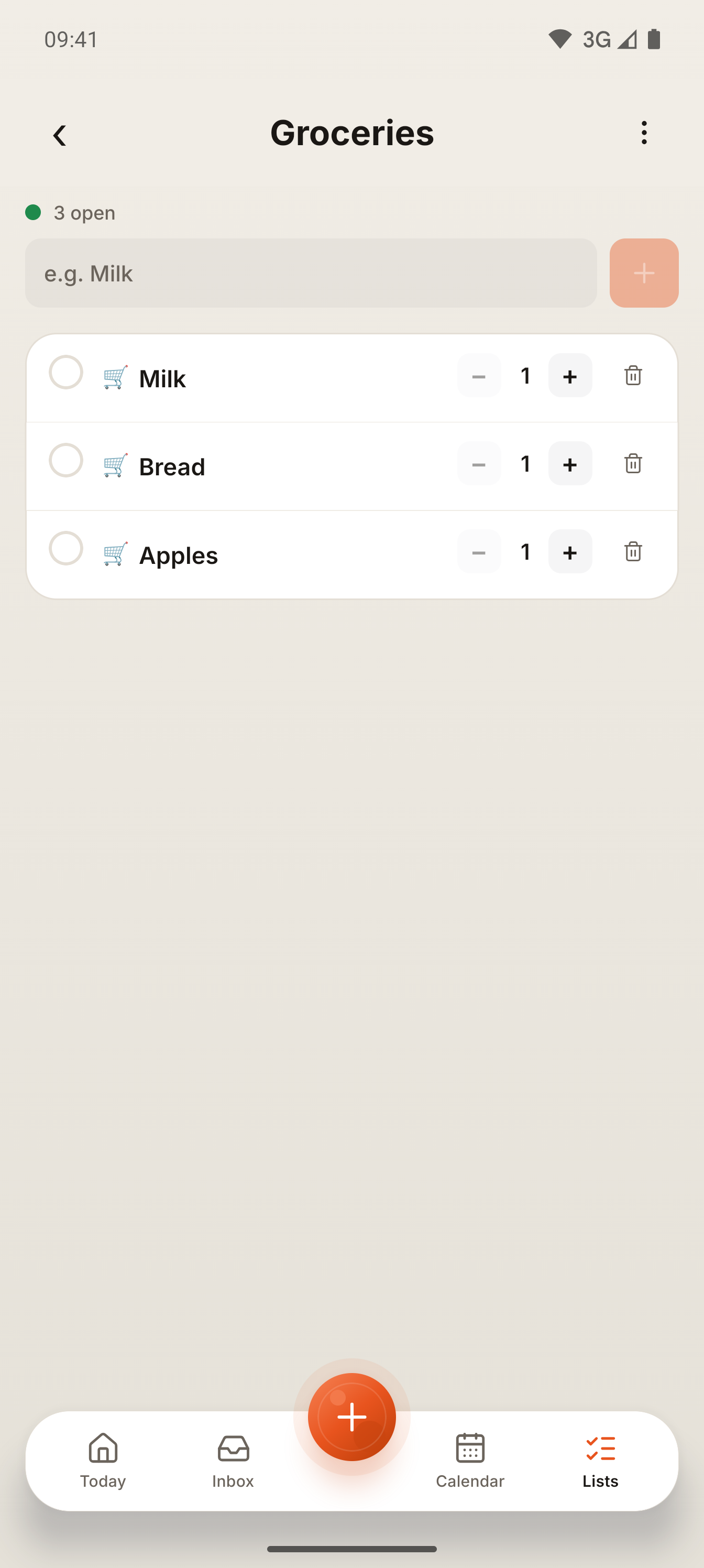
Keep adding
Each item lands in the list straight away, with plus and minus for quantities. Everyone in the household sees the same list.
Captured 30 October 2026 in a test environment with a test household. English app.
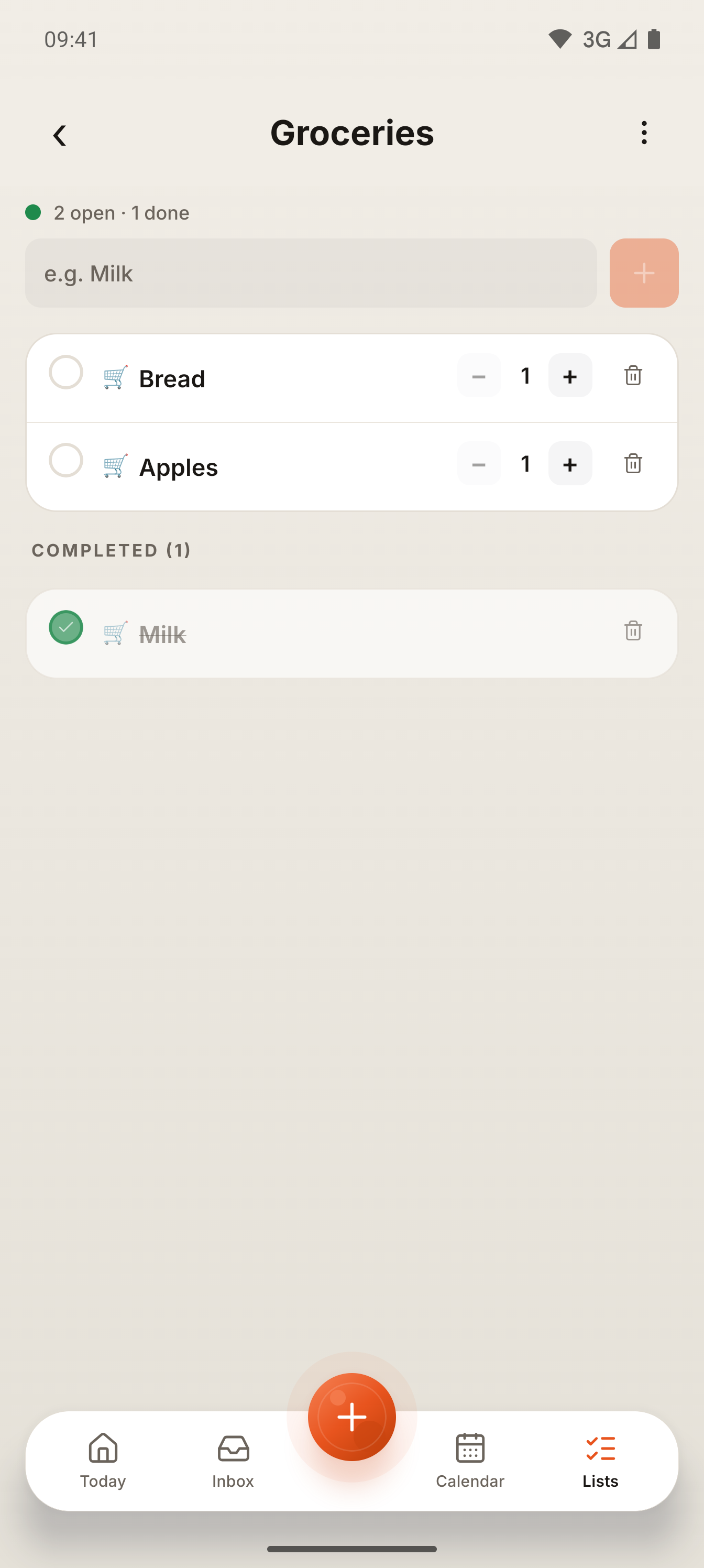
Tick it off
Tap the circle next to an item. It moves under Completed, crossed out.
Captured 30 October 2026 in a test environment with a test household. English app.
A checked item stays crossed out until you clear the list, so nobody buys the milk twice.
Connected sources
Choose where Larevio brings events in from, and where approved events are saved back out to.
Bring events in, on your terms
Connect Google Calendar or Microsoft Calendar, use Outlook Mail if it appears in Settings, or simply forward emails to your family address. Everything you connect is listed in one place, and connecting is always optional.
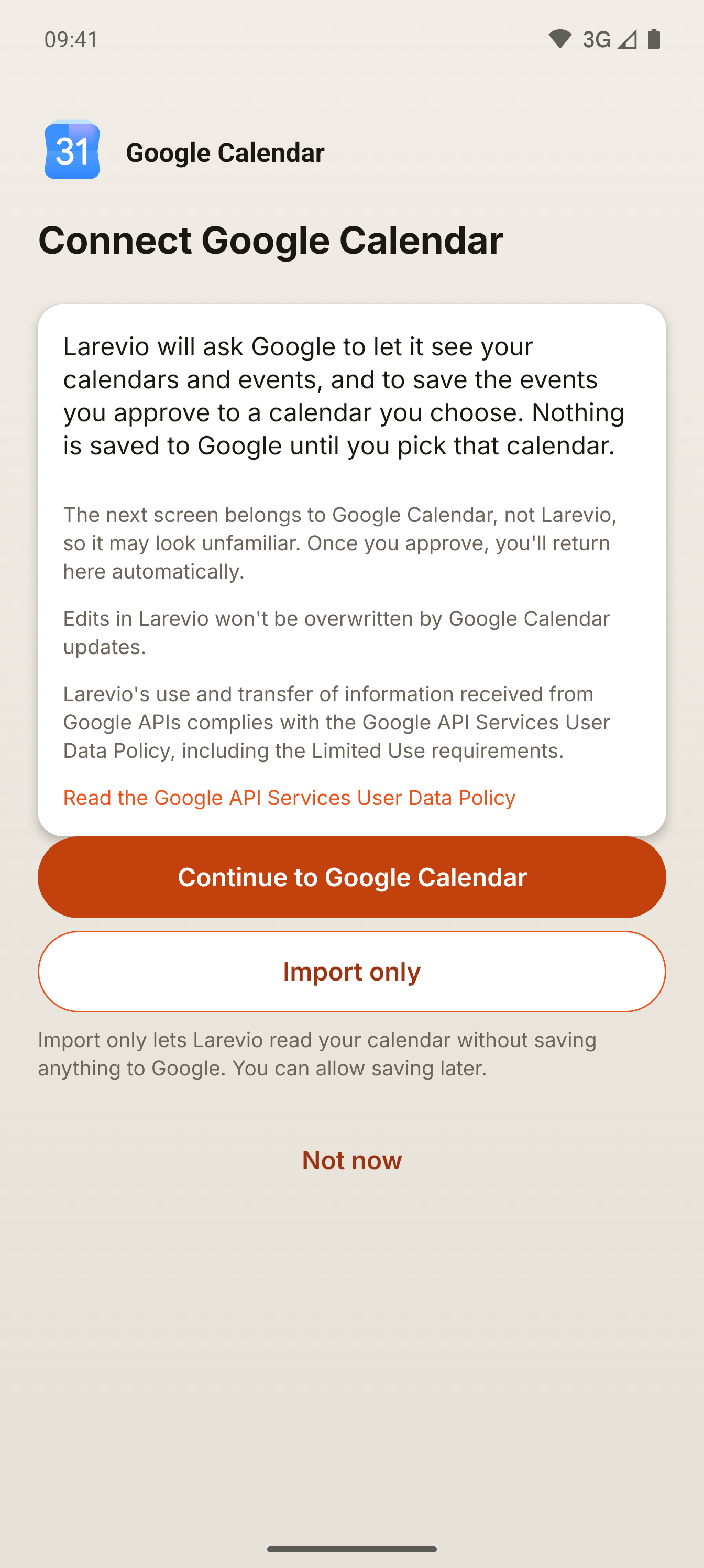
Connect Google Calendar
Tap Google Calendar. Larevio first explains what it will use and that the next screen belongs to Google. Continue to Google Calendar takes you there to sign in; Import only and Not now are on the same screen.
Captured 30 October 2026 in a test environment. The capture stops here, before any Google screen.
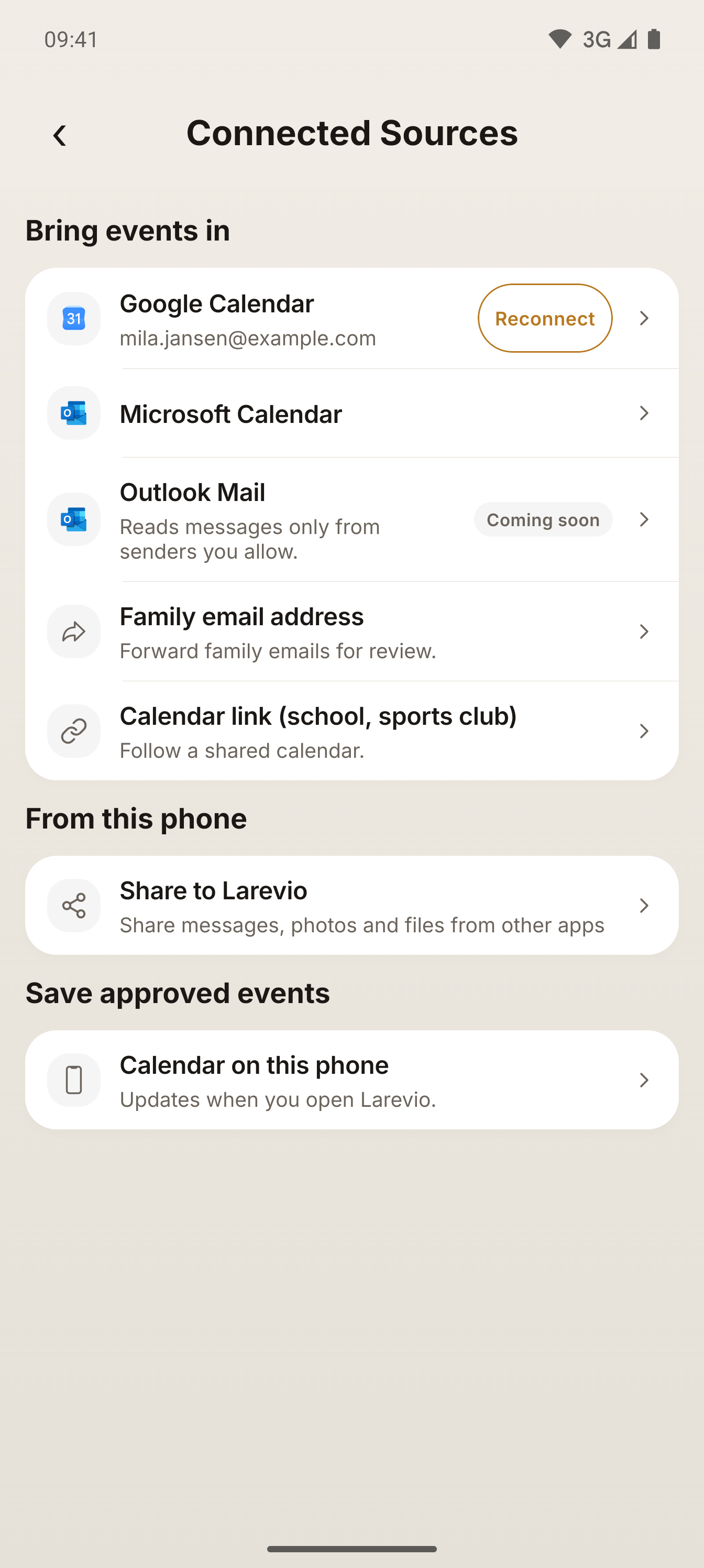
Reconnect when asked
If a connection needs you to sign in again, its row shows Reconnect. Tap it.
An example of the Reconnect prompt, shown with a test connection in a test environment (30 October 2026). Not a real Google error.
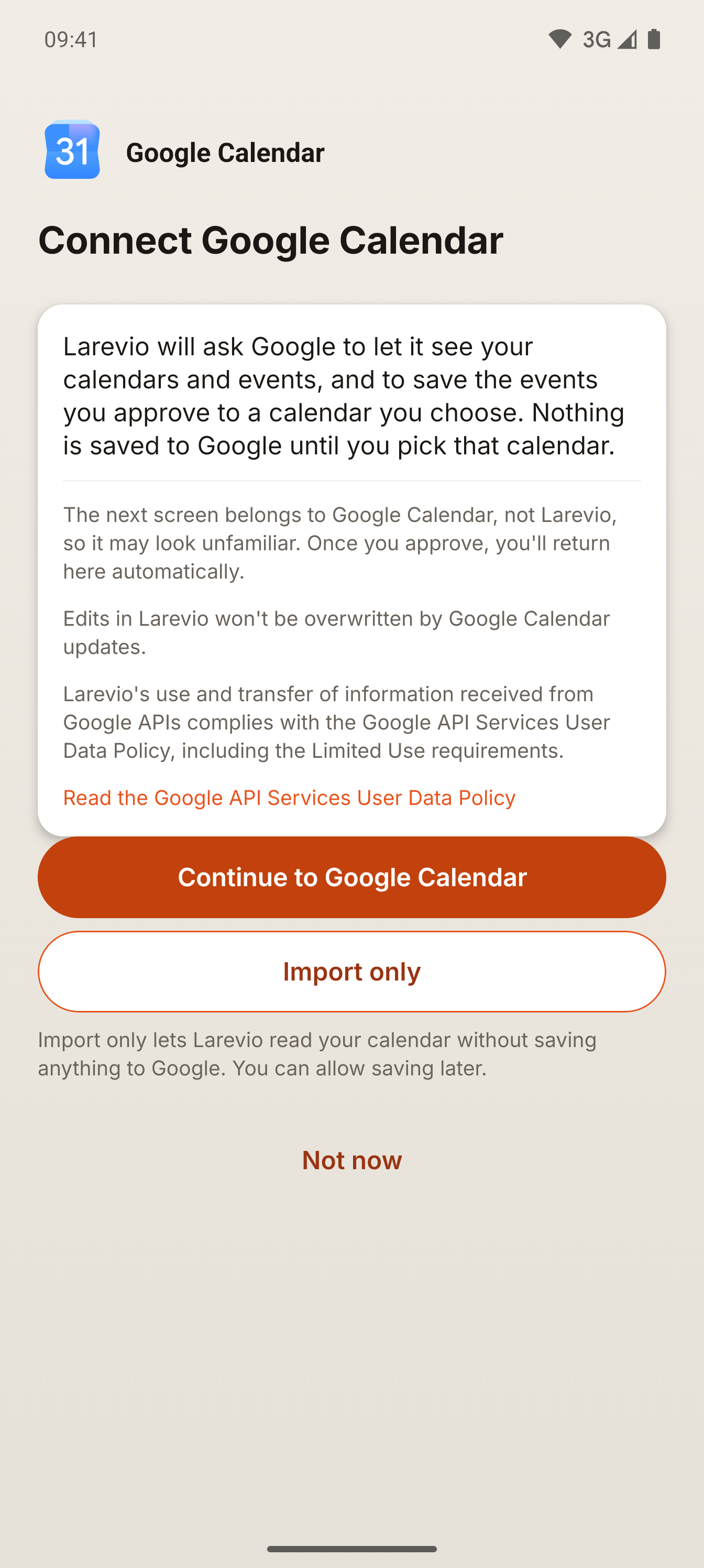
Sign in again the same way
Reconnect opens the same explanation screen, and Continue to Google Calendar takes you back to Google.
An example of the Reconnect prompt, shown with a test connection in a test environment (30 October 2026). Not a real Google error.
One address for school and club emails
Create a single email address for your household. Forward anything there and Lare prepares it for you to review, no mailbox password needed.
Only forward family information you are allowed to share. Unsafe or unsupported content may be blocked.
Your household
Invite the other adults, add the children, and share the everyday jobs fairly.
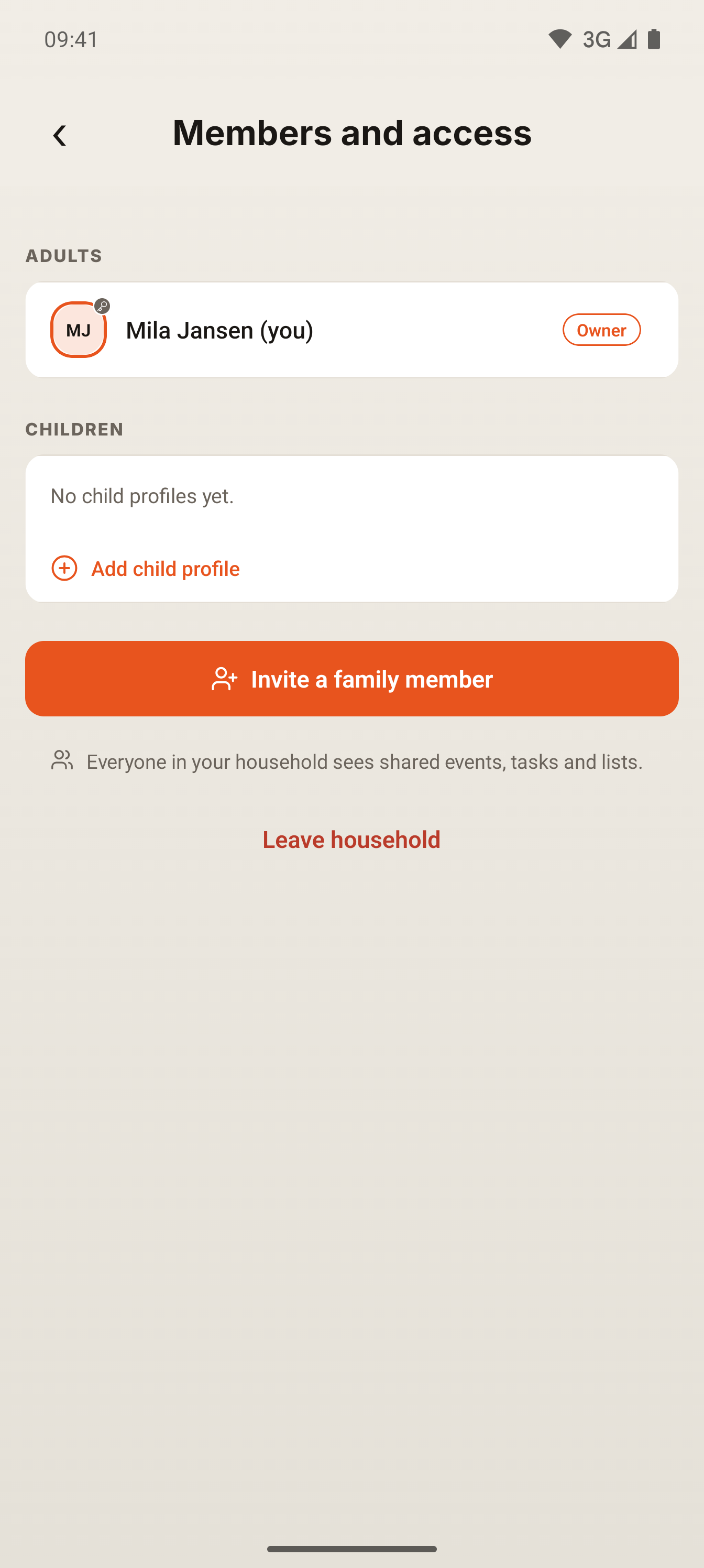
Invite another adult
In Settings, open Household and tap Invite a family member.
Captured 30 October 2026 in a test environment with a test household. English app.
A household can have up to 8 adults and 12 child profiles.
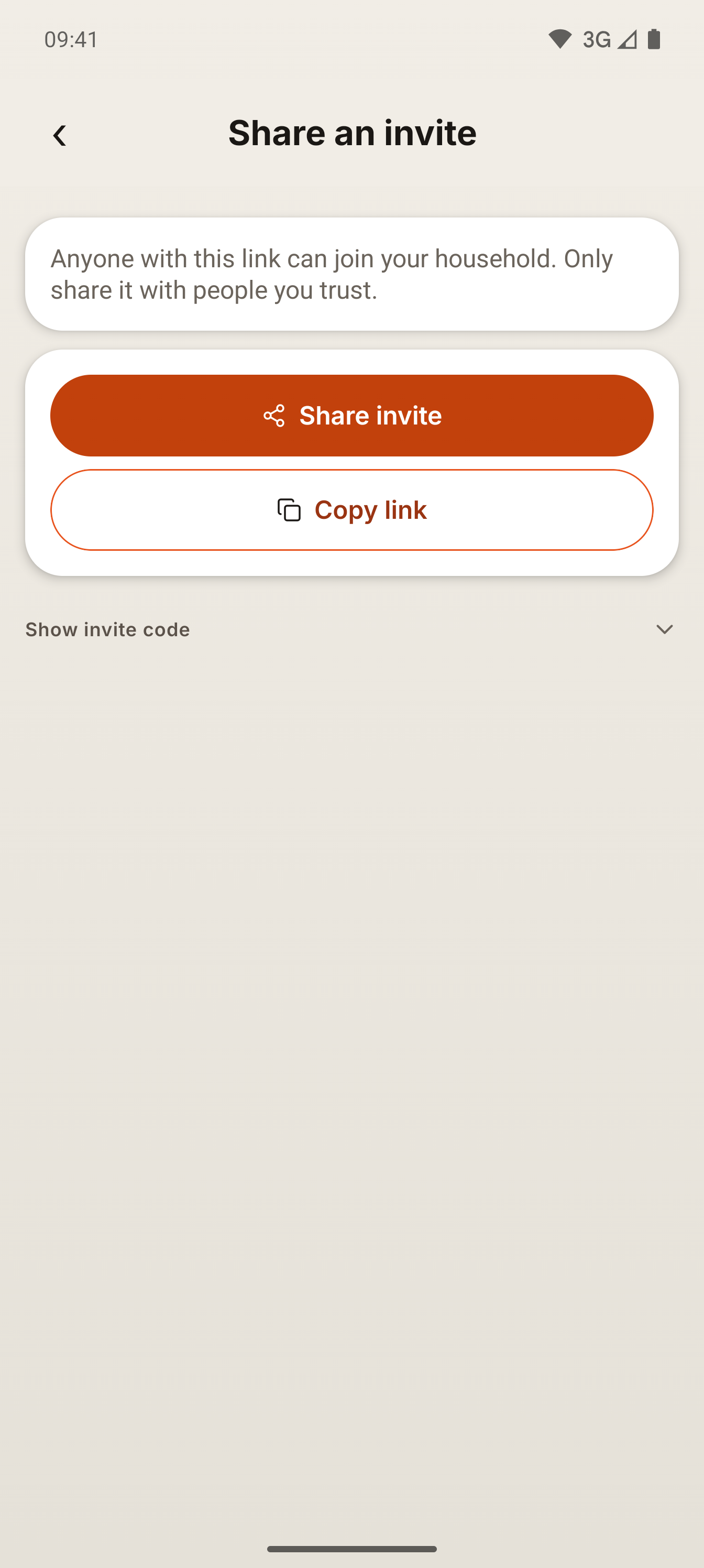
Share the invite
Choose Share an invite, then Share invite to send the link with any app you use. Copy link and Show invite code are there too.
Captured 30 October 2026 in a test environment with a test household. English app.
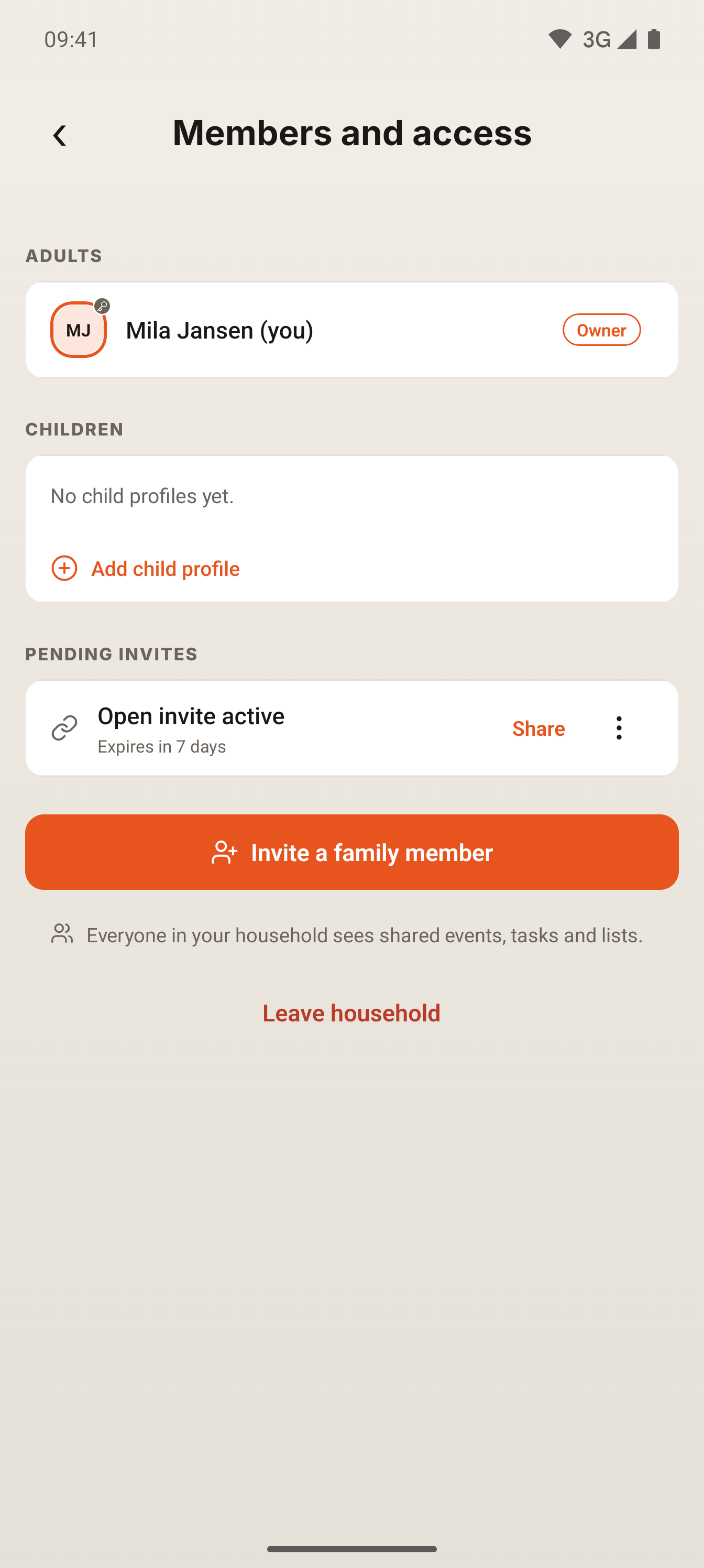
The invite waits for them
Members lists the open invite until someone joins with it. An invite expires after 7 days, and you can share it again from here.
Captured 30 October 2026 in a test environment with a test household. English app.
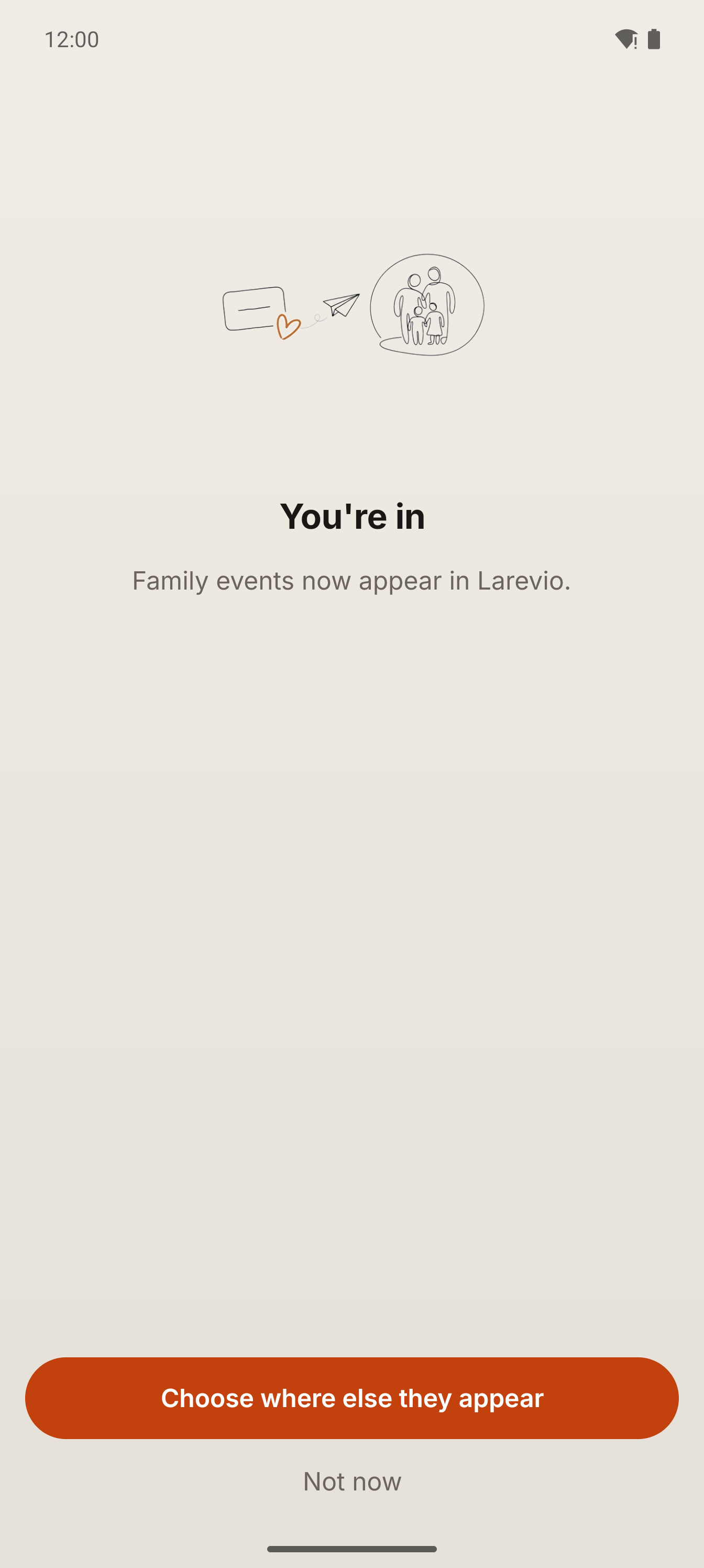
They join with the code
On their own phone, they enter the code and see the household name before joining. Once they join, family events appear in their Larevio too.
Captured 30 October 2026 in a test environment with a test household. English app.
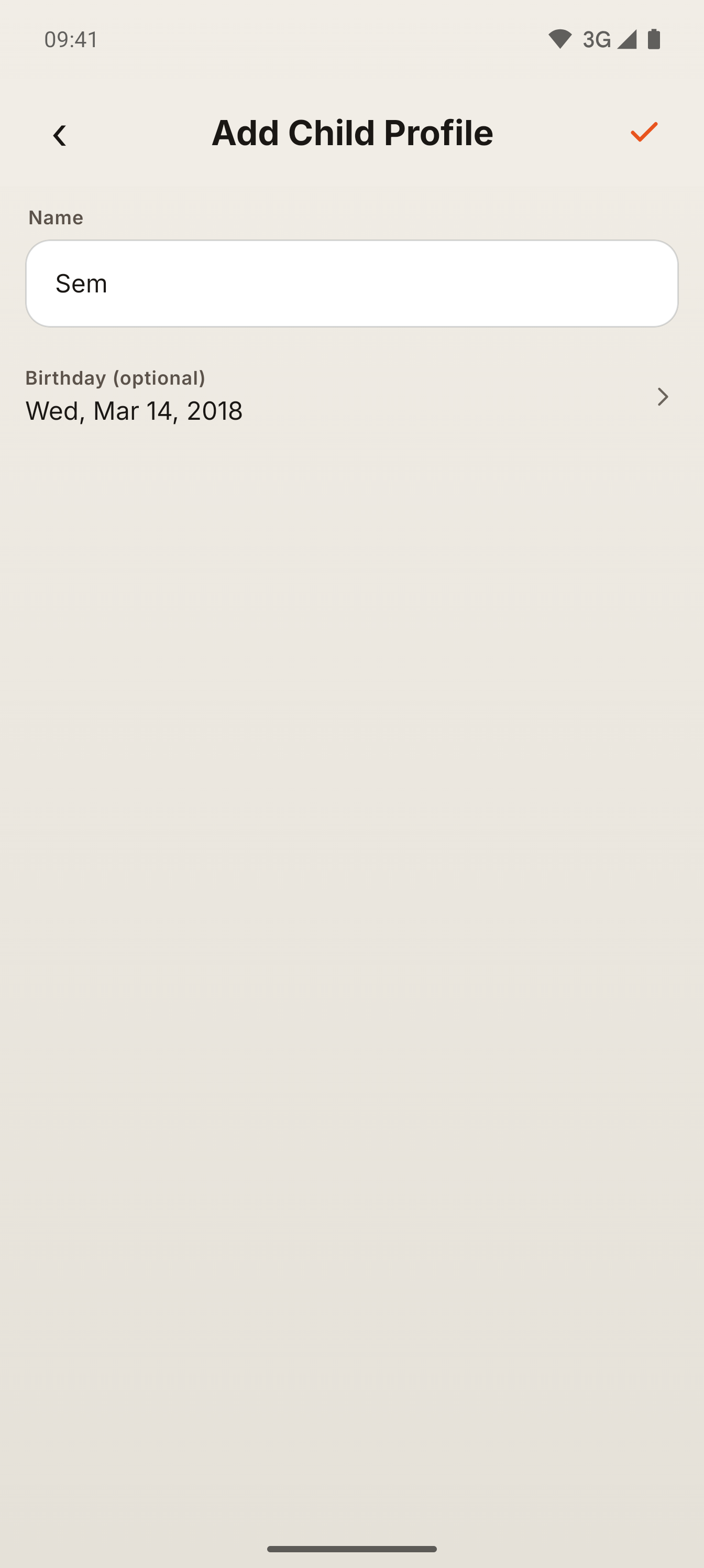
Add a child
Choose Add child profile, fill in the name and, if you like, the birthday, then tap the check.
Captured 30 October 2026 in a test environment with a test household. English app.
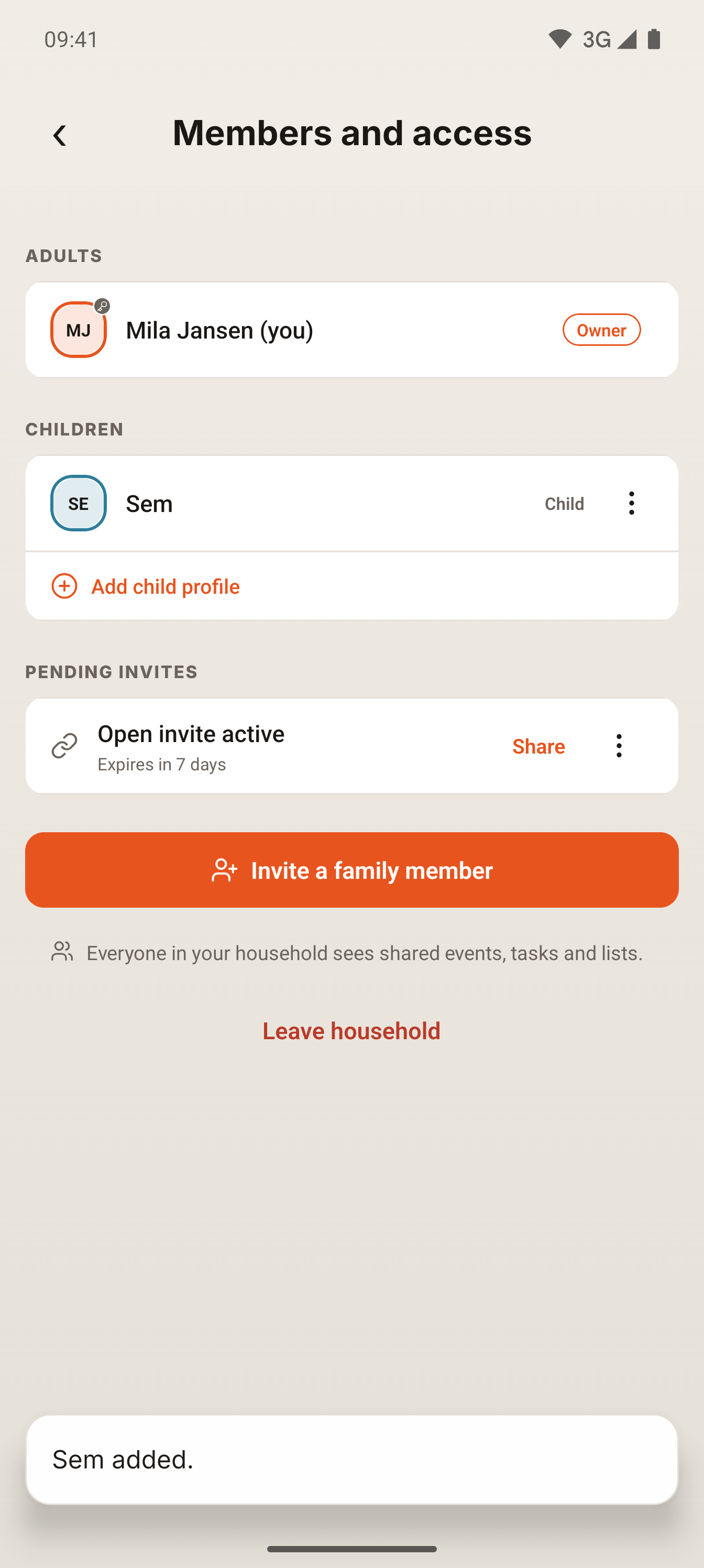
The child has a profile
The child appears under Children. Children get their own profile, with their own colour in the calendar. No sign-in needed.
Captured 30 October 2026 in a test environment with a test household. English app.
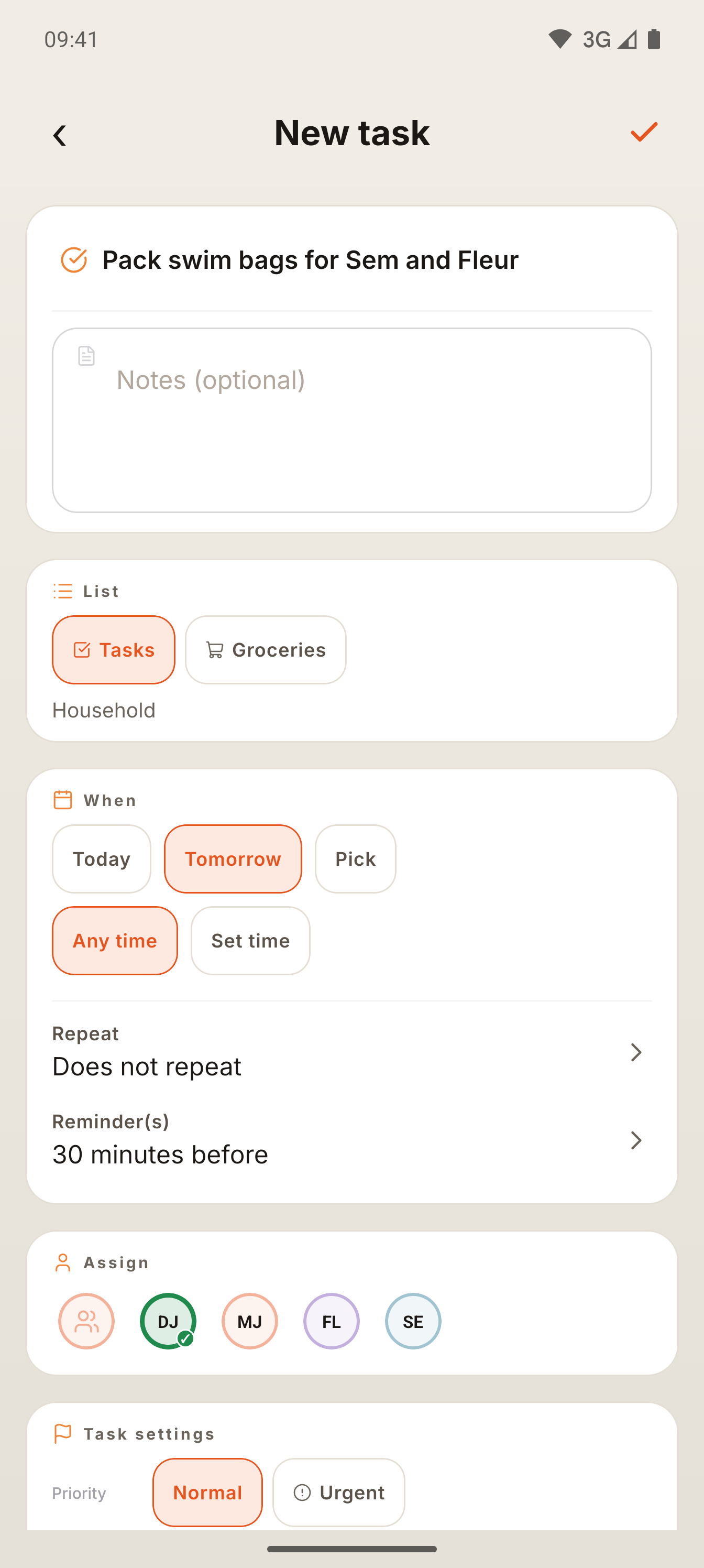
Assign a task
In a new task, tap a person under Assign, then tap the check to save.
Captured 30 October 2026 in a test environment with a test household. English app.
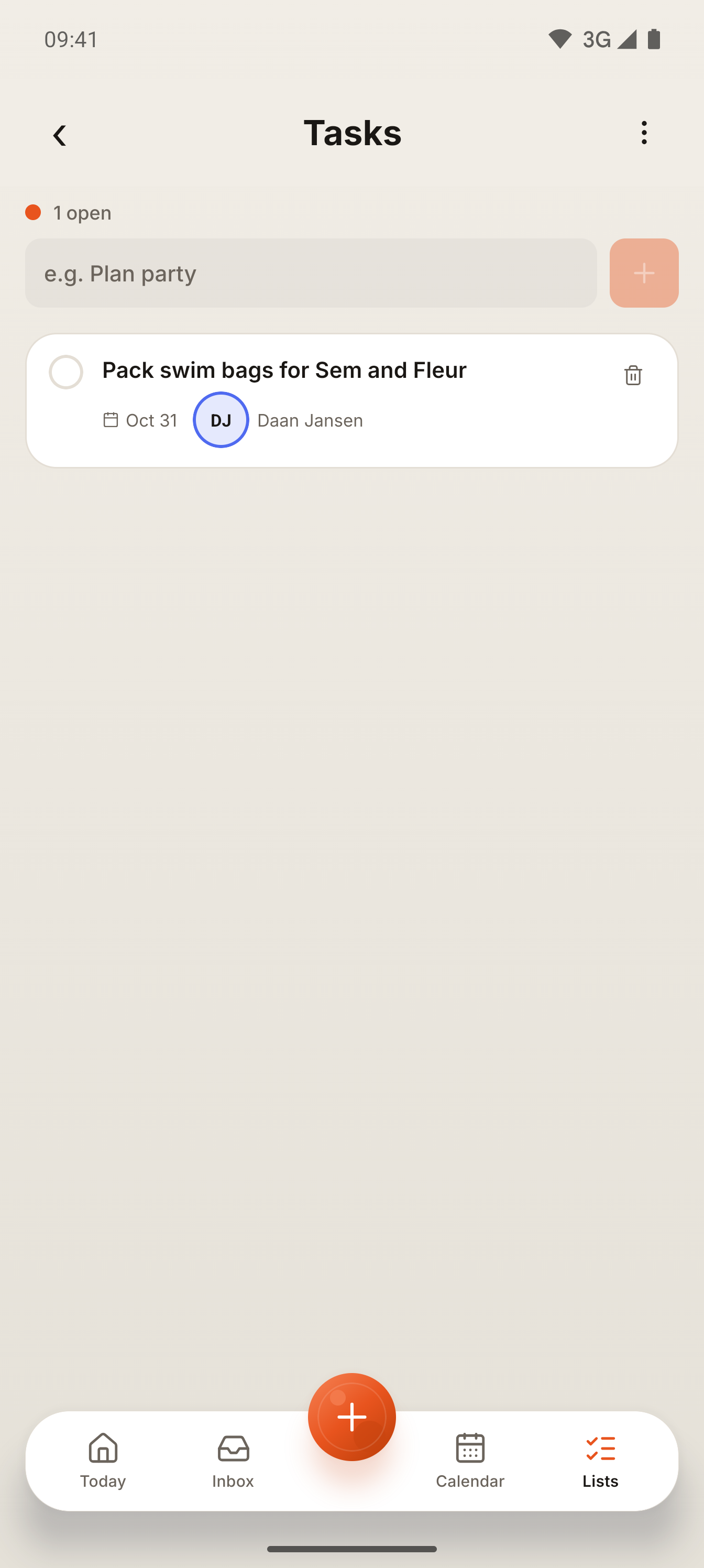
Everyone sees who it is for
The task shows the person it is assigned to.
Captured 30 October 2026 in a test environment with a test household. English app.
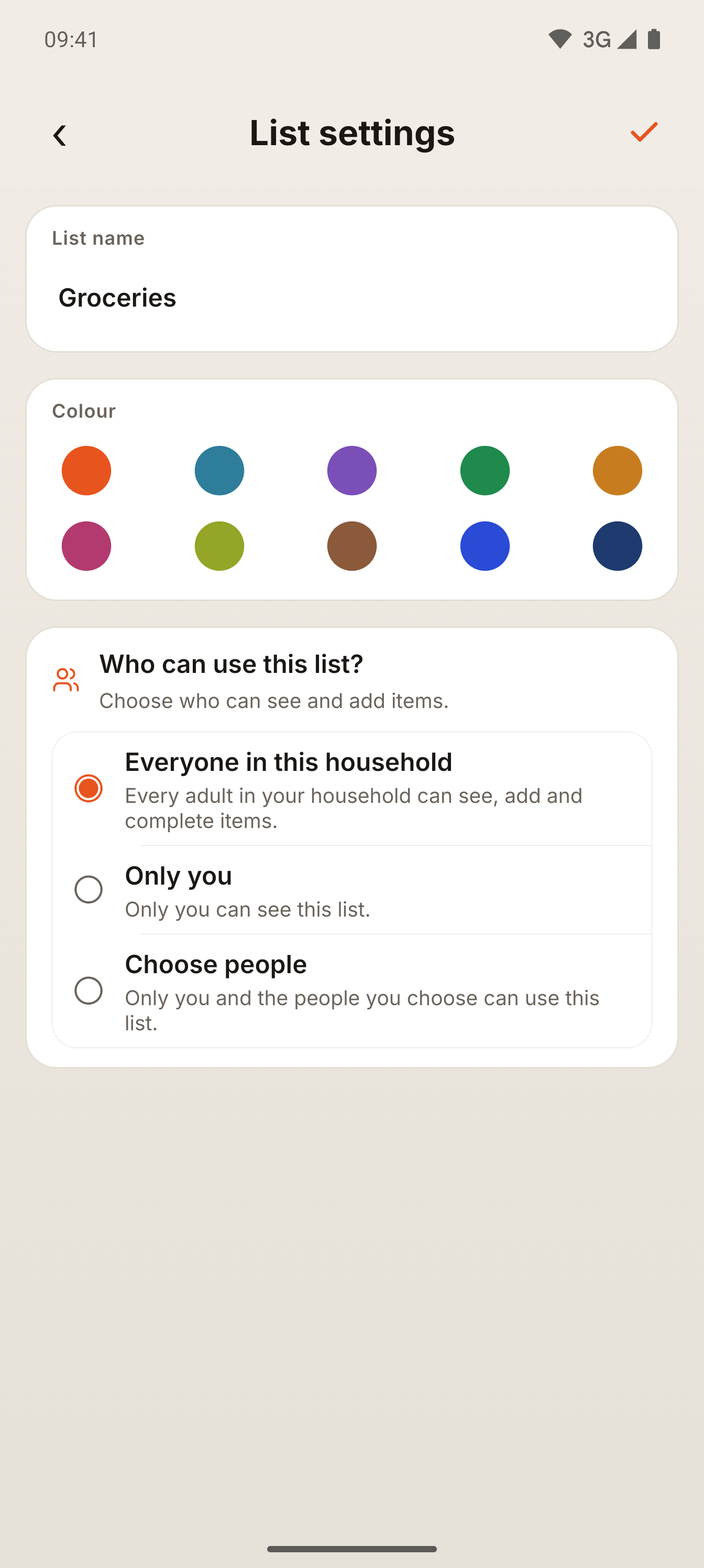
Choose who can use a list
In a list's settings, choose Everyone in this household, Only you, or Choose people.
Captured 30 October 2026 in a test environment with a test household. English app.
Special days
Birthdays and other family dates, counted down and remembered.
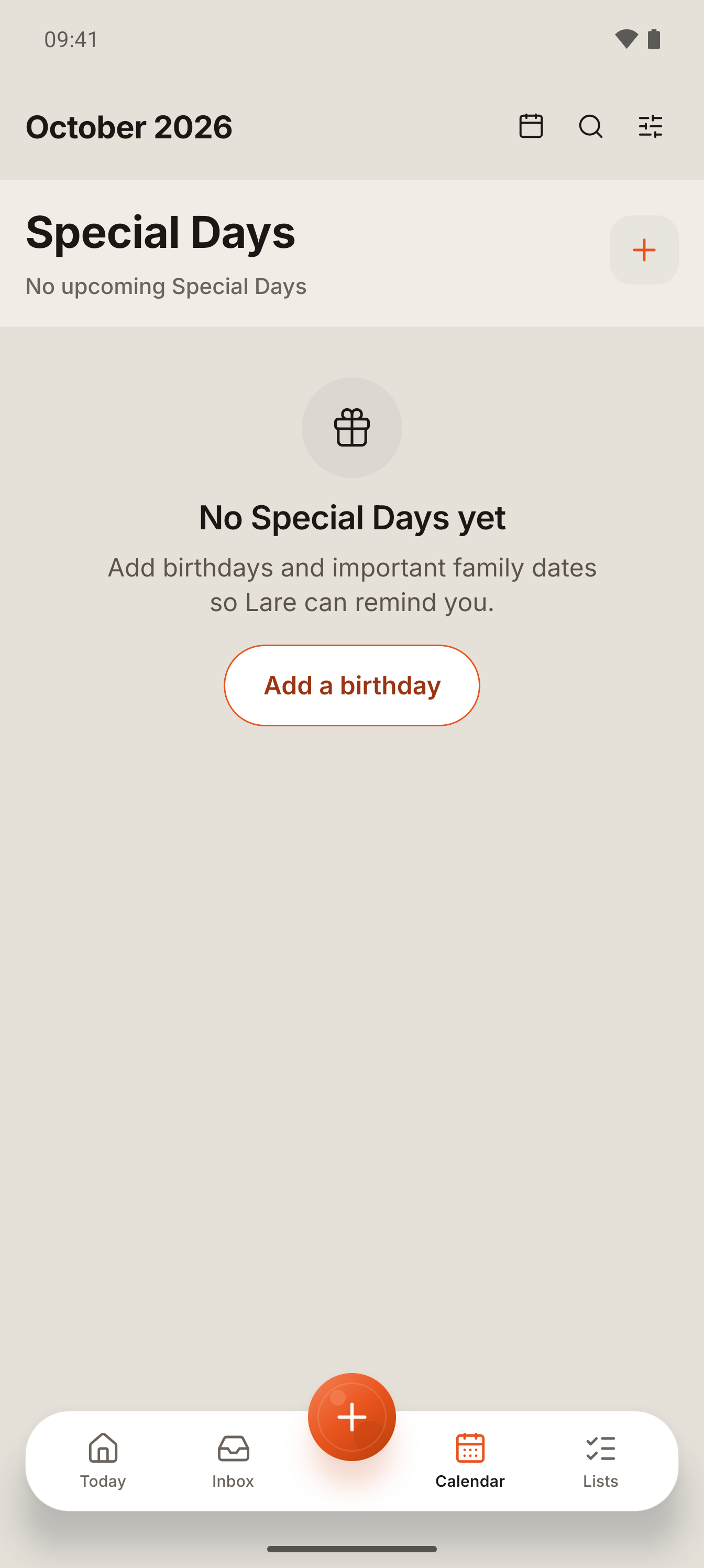
Add a Special Day
In Calendar, switch the view to Special Days and tap the plus.
Captured 30 October 2026 in a test environment with a test household. English app.
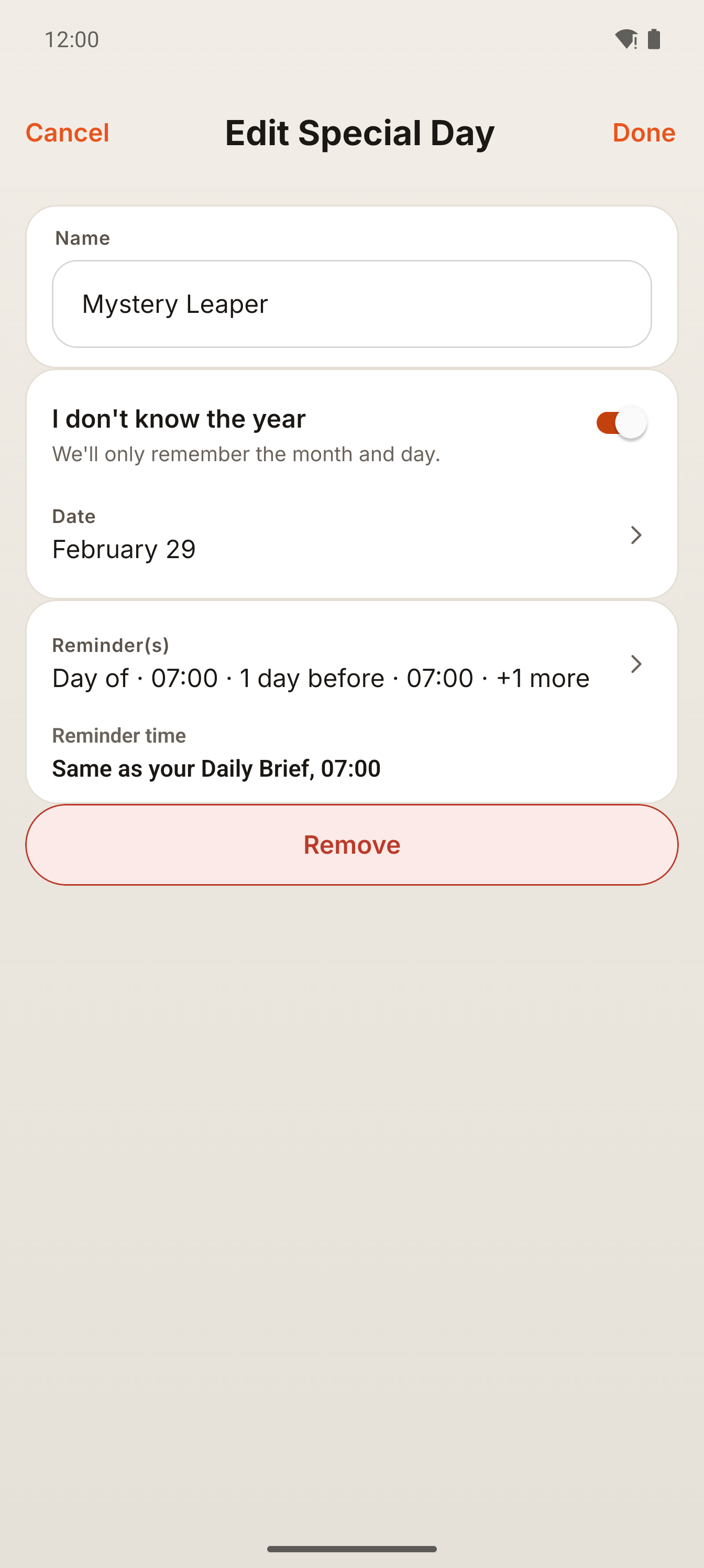
Fill it in
Add the name, the kind of day and the date. If you do not know the year, switch on I don't know the year: Larevio keeps only the month and day, even for a leap day like February 29. Reminders are already set; you can change them.
Captured 30 October 2026 in a test environment with a test household. English app.
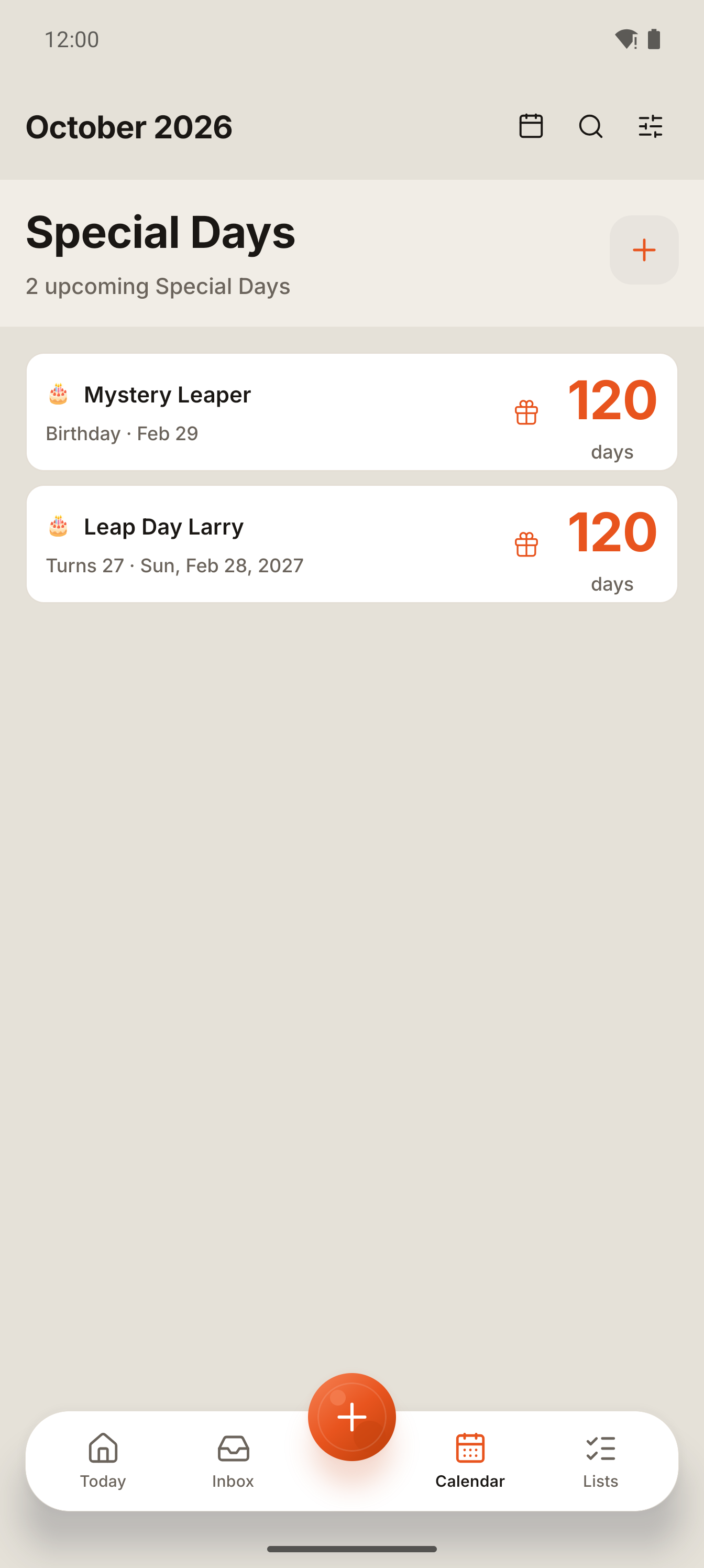
See the countdown
Your Special Days are listed with the days to go, the nearest first.
Captured 30 October 2026 in a test environment with a test household. English app.
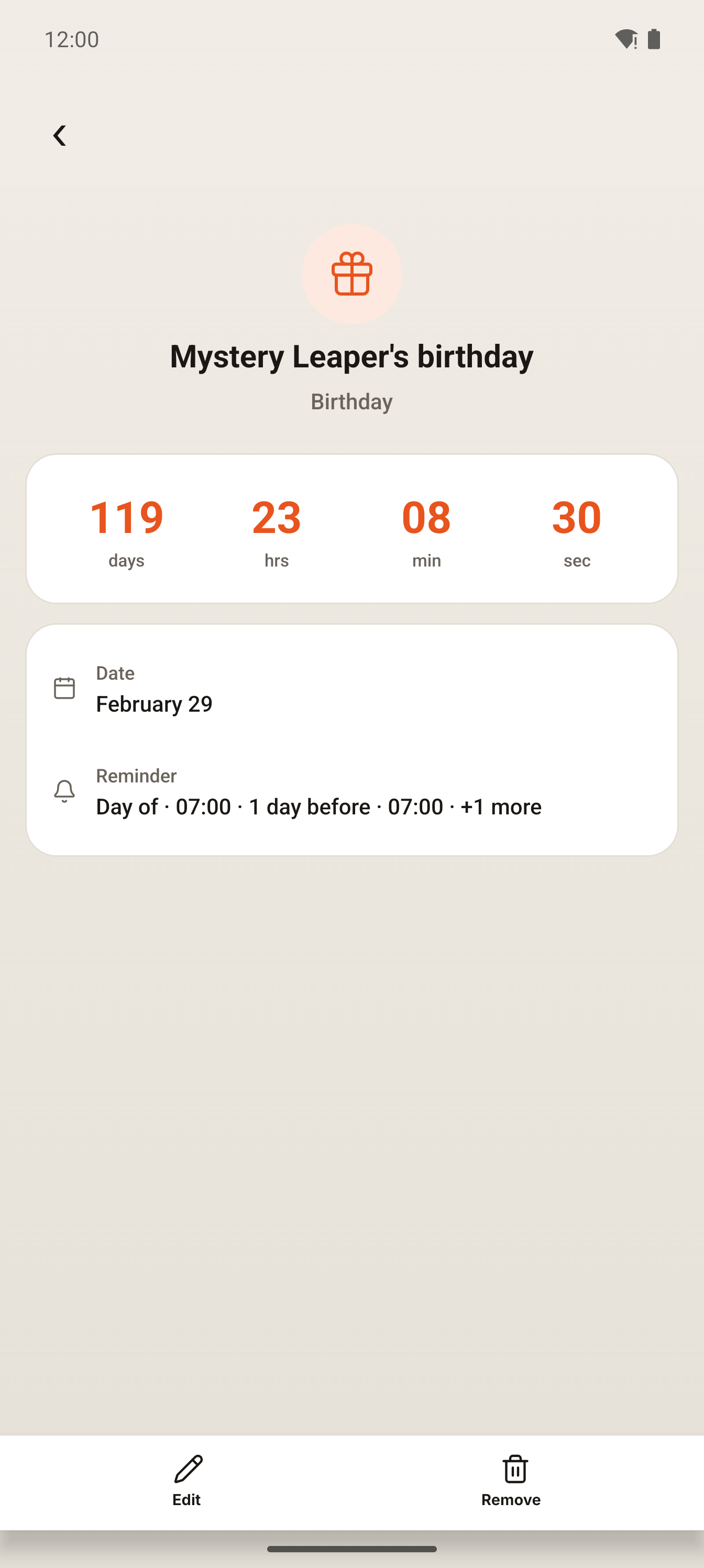
Open it for the details
Tap a Special Day to see the countdown, the date and its reminders, with Edit and Remove.
Captured 30 October 2026 in a test environment with a test household. English app.
Founding familiesGet an invitation to Larevio.
Join the founding families. We email you when it is your turn.
Larevio is in private testing with a small group of families. The app is available in English and Dutch today.
Or email us directly: [email protected]